Build an agent with Agent Studio
Agent Studio builds an agent from a conversation. You say what the agent is for, Scout drafts the whole thing, then talks through anything it couldn’t work out, one question at a time. You can also use it to change an existing agent by chat.
Before you start
- You are a workspace admin.
- Agent Studio is available on your workspace (see the note below).
Open Agent Studio#
- Click Agent Studio in the console header.
- On the Agents page, use the New agent card: click Agent Studio, or type into Describe the agent you need… and press Enter. What you typed is waiting in the chat, ready to send.
- To change an existing phone agent, open it and click Edit with Scout.
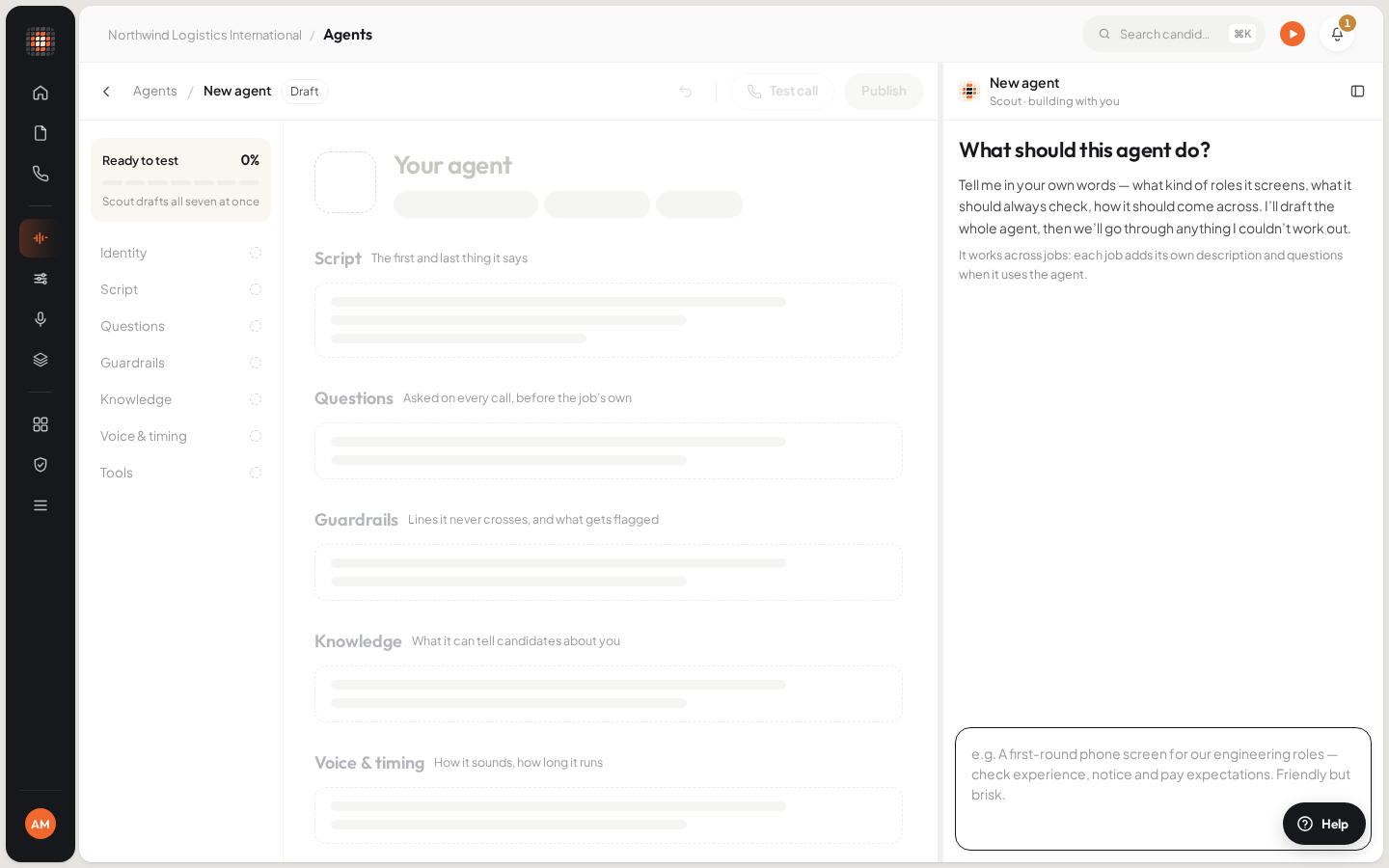
Agent Studio: the agent on the left, the chat with Scout on the right.
Describe the agent#
Under What should this agent do?, describe it in your own words: what kind of roles it screens, what it should always check, how it should come across.
- For example: “A first-round phone screen for our engineering roles — check experience, notice and pay expectations. Friendly but brisk.”
Send the message.
ResultScout writes the agent on the left as a page you can read: identity, script, questions, guardrails, knowledge, and voice and timing.
Answer Scout’s follow-up questions. Each one comes with Scout’s own suggestion, so a plain “yes” is often enough.
Listen to the voices offered in the agent page and pick one.
An agent isn’t tied to one job. Each job adds its own description and questions when it uses the agent, so you don’t need to name a job here.
Refine it#
- Type what you’d like to change in the chat, in plain words.
- Select any words on the agent page to ask about them: choose Ask Scout, or a quick change such as Shorter, Warmer or In Hindi.
- Reorder questions by dragging them, or with the up and down arrow keys.
Undo and redo changes#
Every change Scout makes leaves a short note in the chat saying what changed. Each note has Undo, and an undone change has Redo. To reverse the most recent change, use the undo button at the top of the agent page (Undo the last change).
Test and publish#
The Ready to test meter on the left shows how much of the agent is settled. Until it’s complete, Test call and Publish stay unavailable: keep talking with Scout to fill the gaps.
Click Test call to try it.
ResultScout saves the agent as a draft and opens the Playground, where you talk to it in the browser.
Click Publish when you’re happy.
ResultScout creates the agent, publishes it as version 1 and opens it in the editor.
See Test and publish an agent for the Playground and what publishing means.
Change an existing agent by chat#
When you open Agent Studio from an agent with Edit with Scout, the chat says Editing and the agent’s name. Changes save into the agent’s draft as you go; calls keep using the live version until you publish. The publish button shows the next version, for example Publish v3 (the number depends on the agent).
If Agent Studio isn’t available#
Agent Studio depends on how your workspace is set up. If it can’t start, it shows an error when it opens: build the agent with New agent and the editor instead.