Add candidates to a manual job
A manual job’s candidates are added in Scout: one by one, or in bulk from resumes and a CSV or Excel list. Nothing is added from a bulk upload until you’ve reviewed it. Jobs from your ATS get their candidates from the ATS instead.
Before you start
- A manual opening. See Add a job.
- For candidates to be called, a workflow assigned to the job.
Open Add candidates#
Open the job from Jobs and click + Add candidates next to its tabs.
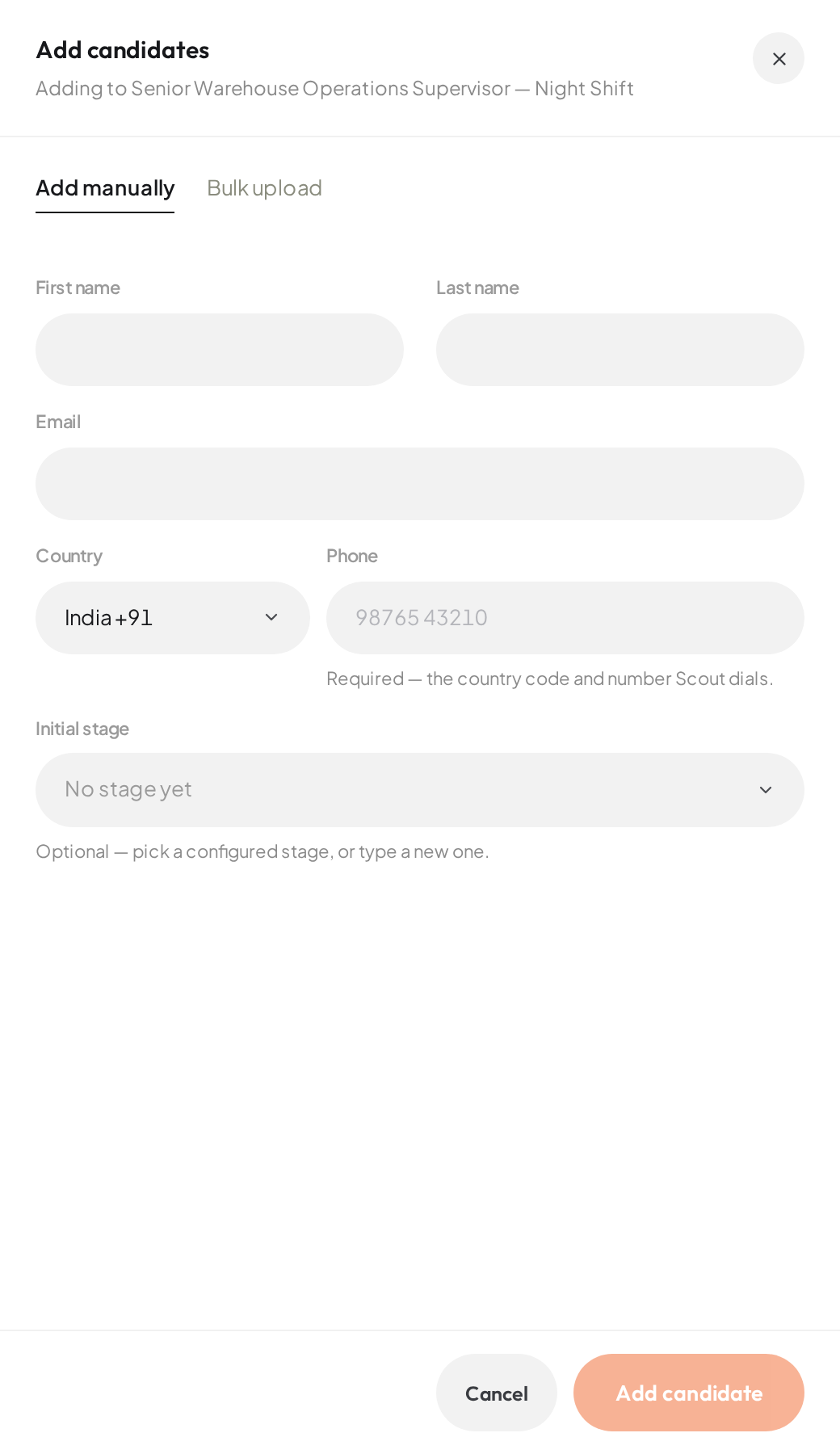
- 01Add one candidate by hand
- 02Upload resumes or a spreadsheet
ResultThe Add candidates drawer opens on Add manually. The button only shows on manual jobs.
Add one candidate#
On Add manually, enter a First name, Last name or Email (at least one).
Enter the Phone number with its country code. It’s required: it’s the number Scout dials.
Optionally, pick an Initial stage. Leave it empty to add them with no stage yet.
- If a call rule is set for that stage, the drawer warns you: adding the candidate places a real call to them right away.
Click Add candidate.
ResultThe candidate is added and the form clears for the next one.
- Someone already in Scout (matched by email, else phone) is reused, and their details are updated.
- Someone already on this job isn’t added twice. Use View candidate to open them.
Add many candidates at once#
On Bulk upload, drop resumes and a candidate list in any mix, or click to browse. Scout reads each one, and you review everything before anyone is added.
| What you can upload | Limits |
|---|---|
| Resumes: PDF, DOCX, JPG, PNG, or a ZIP of them | Up to 300 resumes per upload. Each file up to 15 MB; a ZIP up to 100 MB. |
| A list: CSV or XLSX | One list at a time, up to 2,000 rows and 10 MB. |
- Old Word (.doc) and old Excel (.xls) files can’t be read. Save them as PDF or DOCX, or as .xlsx or .csv.
- Inside a ZIP, password-protected files and ZIPs within the ZIP aren’t read.
- Photos and scans are read as images.
- Starting a list from scratch? Click Download a template for a CSV with the usual columns.
If you drop resumes and a list together, each person’s resume and their line in the list become one row to review.
Match a list’s columns#
For a CSV or XLSX, Scout first shows each column with a few of its values and its best guess of where it goes.
Check where each column goes, and change any that are wrong.
- A candidate detail, such as Name, Phone, Email or Job title.
- A question the job’s calls ask: the agent confirms the answer on the call.
- Note for the agent: known to the agent, never asked.
- Leave out.
Click the Review button under the columns.
ResultThe list becomes rows to review. Nobody is added yet.
You need a phone column and a column with names or emails. Until then Scout shows Pick the column with phone numbers — Scout dials them. or Pick a column with names or emails. To start over with another file, click Use a different file.
Review the rows#
Each resume or line becomes a row, ticked if it’s ready. Filter the list (for example Needs a fix) or search it, and click a row to edit the name, email, phone or title Scout read.
- A row without a phone number Scout can dial needs one before it can be added.
- If two resumes in the upload are the same person, only one can be added.
- Rows for people already on this job can’t be ticked.
Add them, and choose when calls start#
Optionally, pick an Initial stage for these candidates. It applies to everyone you add.
If that stage contacts people, read the estimate Scout shows: how many people it will call or email, and roughly how long the calls take within calling hours.
Click Confirm & add with the number of ticked rows.
ResultThe ticked candidates are added. Any that couldn’t be (no number to dial) stay in the list to fix.
When more than 20 people would be contacted at once, Scout asks you to choose first:
- Add without calling: they’re added with no stage. Move them into the stage when you’re ready.
- Add and start now: they go into the stage and contacting them starts right away.