Set up a job for screening
Agents ask the same questions on every job. The Job setup tab is where you add what only this job needs: its own questions, how much each area counts in the score, a minimum resume match for the first call, and notes for the agent.
Before you start
- A job (manual or from your ATS). See Add a job.
- For the calls to show here, a workflow assigned to the job. See Assign a workflow to jobs.
Open Job setup#
Open Jobs, click the job, then the Job setup tab.
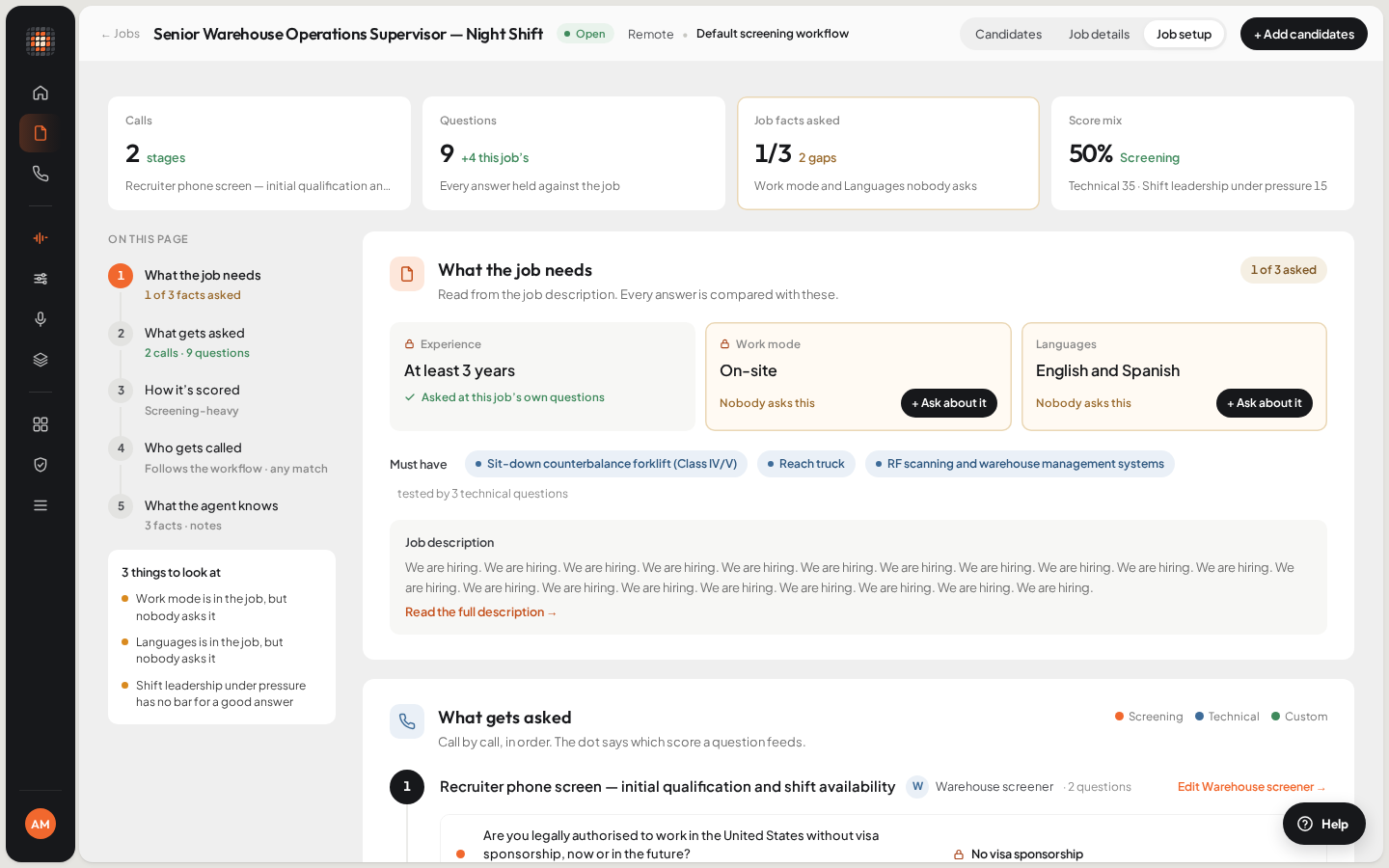
- 01What the job needs, read from the description
- 02The questions each call asks
- 03How it’s scored (the score mix)
- 04Who gets called
ResultA row of tiles sums up the setup, and the page runs through What the job needs, What gets asked, How it’s scored, Who gets called and What the agent knows. The list on the left jumps between them and flags anything worth a look.
What the job needs#
The facts Scout read from the job description, such as notice period, experience or work mode, and whether any call asks about each one. Every answer a candidate gives is compared with these. Where a fact shows that nobody asks it, you can add a question for it with one click.
Add the job’s own questions#
What gets asked shows every call the job’s workflow makes, in order, with each agent’s questions. The job’s own questions are asked on the first screening call, after the agent’s.
Under the screening call, click + Add a question, or one of the suggestions next to it for a fact nobody asks yet.
ResultThe Edit question dialog opens.
Fill in What to find out and the Answer type. Optionally, add What a complete answer includes: until the answer covers it, the agent keeps asking.
- The agent puts the question in its own words and follows up when an answer is vague.
Click Done, then Save questions in the bar at the bottom of the page.
ResultThe questions are saved and the next screening call on this job asks them.
- A job can have up to 10 questions of its own.
- To have Scout draft some from the description, click Suggest from the description (or Suggest again) and add the ones you want. It only shows when the job has a description.
- Other calls that ask questions have their own + Add a question for this step.
- To reorder or remove a question, open it with the pencil and use the arrows or Remove this question.
Questions drafted automatically#
When Draft from the job description is on in Account settings › Job Questions, Scout writes a new job’s questions the first time its description is read, if it has none of its own. Questions per job sets how many. They show as drafted from the description, so review them before you assign a workflow. Questions someone wrote or edited are never changed, and a job whose drafts were all removed isn’t drafted again.
Set the score mix#
How it’s scored sets how much each area (Screening, Technical, Communication and any custom area your agents assess) counts in a candidate’s overall score for this job. Scout starts from weights it reads from the job description. A live preview shows what the mix does to a sample or typical candidate’s score.
Drag the slider for each area. The percentage beside it is that area’s share of the score.
Click Save and re-score.
ResultEvery applicant on the job is re-scored. Their area scores stay the same; only the mix changes.
- To go back to the description’s weights, click Use the job description’s weights.
- Areas that no agent on the job assesses are greyed out and don’t count.
- A missed hard requirement keeps a candidate’s band at Possible, whatever the number.
- Scores come from what candidates say on calls. They’re guidance for ranking and comparing; you decide who moves forward. See Scores and fit bands.
Choose who gets called#
Before Scout’s first automatic call to an applicant, it matches their resume to the job. Who gets called sets the minimum match:
- Follow the workflow: use the workflow’s minimum, if it sets one.
- Set a minimum match for this job: use this job’s own minimum. Set Call if resume match ≥ between 50% and 90%.
- No minimum on this job: everyone with a phone number is called.
Pick an option and click Save in that section. The panel beside it shows how many of the job’s applicants meet the minimum.
- An applicant below the minimum isn’t called. They stay on the board with the reason, and Call now still reaches them.
- If an applicant has no readable resume, or the job lists nothing to match against, they’re called anyway.
- If their match is still being worked out, Scout waits for it for up to 30 minutes, then calls.
- The minimum only applies to Scout’s first automatic call on a job, not to Call now, retries or follow-ups. A new minimum applies from now on and doesn’t re-check anyone already held back.
- The resume match only decides the first call. It never feeds the score.
Write notes for the agent#
What the agent knows lists the facts every call on this job can draw on, with where each came from. Below them, write Notes for the agent (shown as Notes for every call on this job once the job has calls), up to 2,000 characters. Each call in What gets asked also has its own notes box for that step only, which wins over the job’s notes.
Notes save with the bar at the bottom of the page (Save notes, or Save questions when questions changed too). Discard drops every unsaved change.