Review a screening call
Every call Scout makes lands on the Screening calls page with a read on whether the candidate fits the job. This article walks through one call, top to bottom, so you can check the reasoning and decide the next step yourself.
Before you start
- At least one call has been placed, by a workflow or with Call now. See Call now and follow-up calls.
Find the call#
Open Screening calls in the sidebar. The list on the left is the queue; the call you pick opens on the right.
- Views. Needs you shows calls waiting on a person: live calls, calls that didn’t connect, flagged calls and calls not scored yet. Live shows calls happening now. All shows everything.
- Filters. Narrow by job (All jobs), by verdict (Any verdict, Needs review, Strong fit, Good fit, Possible fit, Weak fit, Not scored) and by date (Any time, Last 24 hours, Last 7 days, Last 30 days).
- Sort. Newest, Best fit or Oldest.
- Search. Type in Search name, job or number.
The queue is split into Needs your review and Scored. Test calls and agent previews are hidden; tick Include previews & test calls to see them. With a call open, the ↑ and ↓ keys move through the queue.
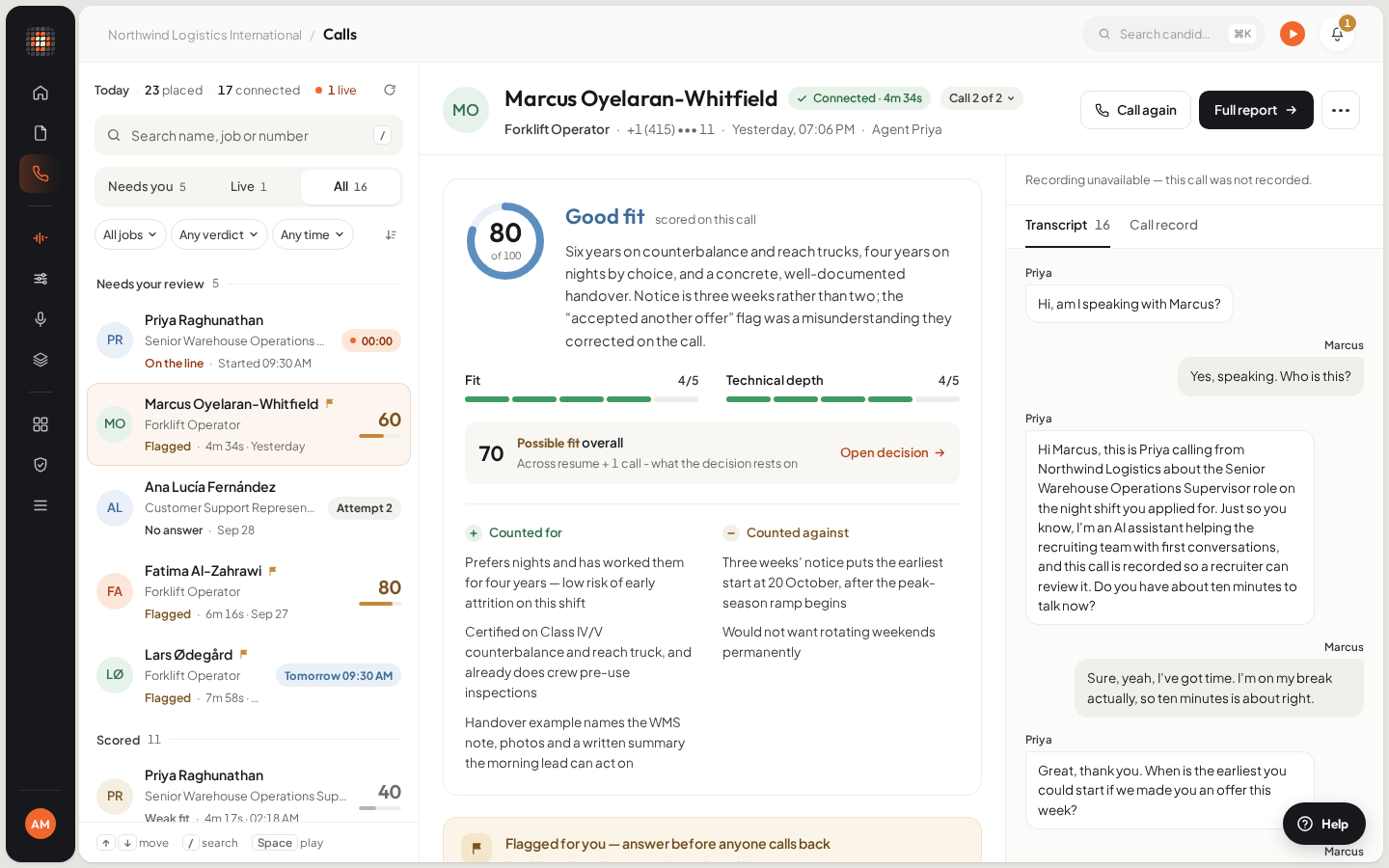
A scored call: the verdict and answers in the middle, the recording and transcript on the right.
- 01Queue views: Needs you, Live, All
- 02The verdict and score for this call
- 03What counted for and against
- 04Transcript and call record
- 05Call again
Read the verdict#
The first card, Fit for this role, is the score: a ring from 0 to 100, the fit band (for example Strong fit), a short summary, and the areas the score is built from, each with five pips. Under a line, Counted for and Counted against list what helped and what hurt. See How scores and fit bands work.
The score is the candidate’s overall score for the job, built from every call so far, not this call alone. Open decision takes you to the candidate on the job, where you act on it.
When there’s no score yet#
| What you see | What it means | What to do |
|---|---|---|
| Scoring this call… | The call just ended. The verdict, answers and moments arrive in about a minute. | Wait; the page updates itself. |
| Not scored yet | Nobody has asked for a score, usually because automatic analysis is off. | Click Score this call. |
| Scoring failed | The analysis didn’t complete. The reason is shown under the title. | Click Try again. |
| No fit score for this kind of call | The agent collects answers rather than screening for fit (for example, interview scheduling). | Read what they said under What they told us. |
| Nothing to score | There was no conversation to judge, such as a dropped call. | Nothing; check the reason shown. |
A call that never connected shows the reason instead, the next try the workflow has queued, and every attempt so far.
Check what they said#
What they told us lists the answers to the job’s questions. Where the job sets a bar (a notice period, say) the answer is shown against it, and a missed bar is highlighted and listed first. A question that was asked but not answered stays in the grid as Never answered. Click an answer to jump to that moment in the transcript.
If the agent raised something for a person, a flag appears above the answers: Flagged for you — answer before anyone calls back.
Moments that set the score quotes the lines that moved the score, marked Counted for or Counted against. Each one links to its place in the conversation, so you can read it in context before you trust it.
Play the recording and read the transcript#
On the right, the recording player sits above the conversation. The moments that set the score are marked along it; click one to play from there. Space plays and pauses.
The Transcript tab shows the whole conversation, turn by turn. Until the call ends it says “The transcript arrives when the call ends.” The Call record tab shows the call’s timeline: when it was dialled, answered and ended.
Open the full report#
Click Full report in the call’s header to open the Analysis drawer. Its sections follow what the agent asked: Fit whenever the agent asked screening questions, plus Communication and Technical when the agent used those question types, and one entry for each custom question block. Each section scores 1 to 5 and lists strengths, concerns or gaps, and notable moments with quotes. Click a quote to go to it in the transcript.
Ask something in the next call#
Under Ask in the next round, the Follow-ups card collects points to raise on a follow-up call: your own (Add a follow-up) and those Suggested by the analysis. You can also select any words in the answers, transcript or report to add a follow-up about them. When you’re ready, click Send follow-up call. See Call now and follow-up calls.
Rate the call#
At the foot of the column, How was this call? takes a thumbs up or thumbs down. A thumbs down asks what went wrong and goes to the Scout team, who look at the call. Tap the same thumb again to take your rating back.
Call again#
Call again in the header (Call back for an incoming call) opens a confirmation that names the candidate, the number and the agent. Nothing dials until you click Call now. The new call opens in the pane when it starts.
The More actions menu has Refresh this call and Copy link to this call, so you can share the call with a teammate.
Turn automatic scoring on or off#
Admins choose whether Scout scores calls on its own in Account settings › AI Analysis › Automatically analyze calls. When it’s on, a phone screening call is scored as soon as it ends. When it’s off, use Score this call on any call you want scored. Scheduling and other non-screening calls are never scored.
Open in Scout: Open Screening calls