Workspace settings
Workspace settings apply to everyone in the workspace, and some change what candidates hear on calls. Admins find them in Account settings, in the Workspace group marked Admin.
Before you start
- You are an admin of the workspace.
Open the settings#
Click your name at the bottom of the sidebar and choose Account settings.
Pick a section under Workspace.
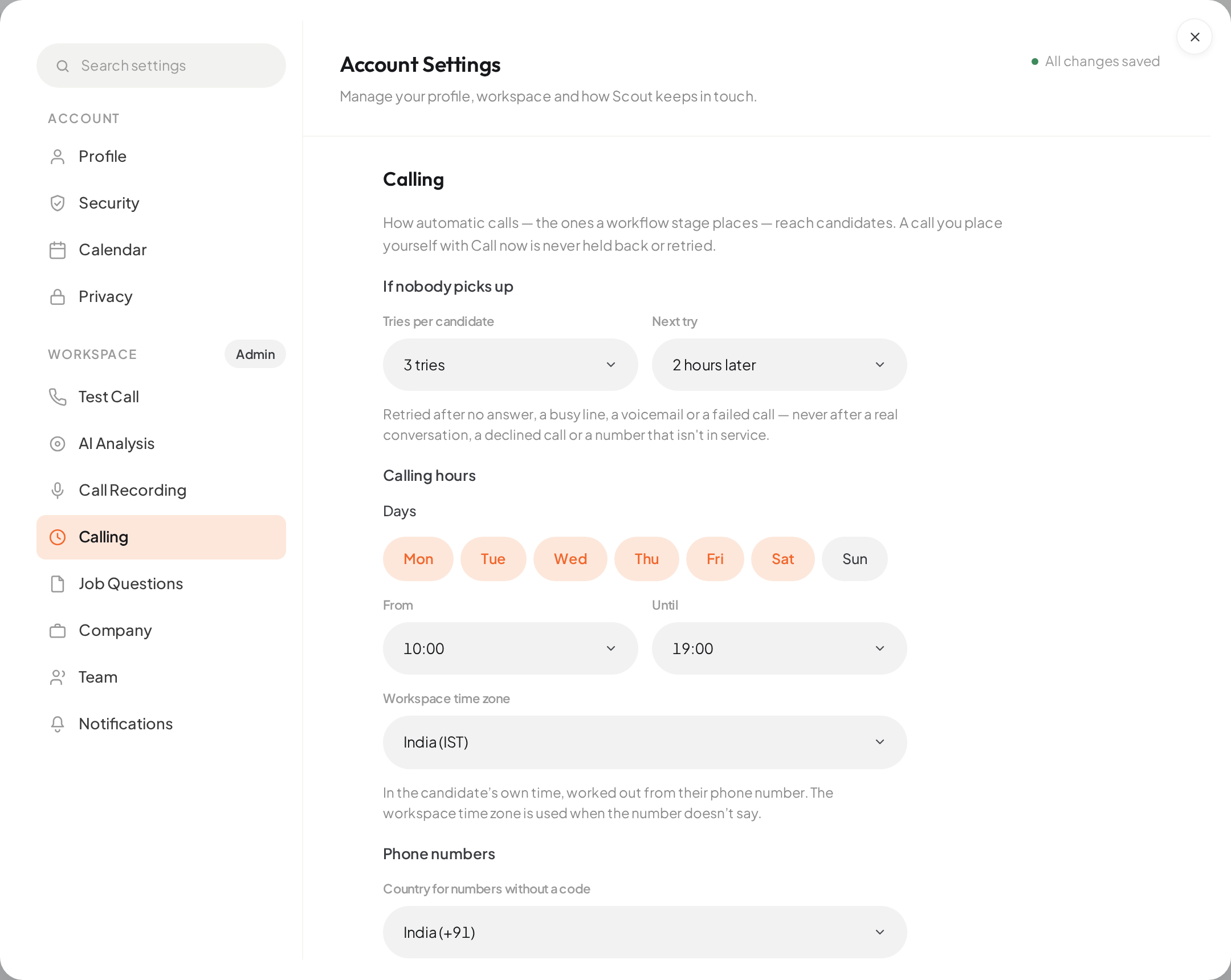
- 01Tries per candidate and Next try
- 02Calling days and hours
- 03Workspace time zone
Toggles save as soon as you change them. Sections with fields have a Save button.
Test Call#
Test Call Number sends every call to a candidate to this number instead: automatic calls, Call now and Call again. The call log shows this number. The caller ID doesn’t change. It is empty by default; leave it empty to call candidates on their own numbers.
On the free trial, calls come from Scout’s shared trial line and ring only this number, automatic calls included. See Calls aren’t going out.
AI Analysis#
Automatically analyze calls runs Scout’s analysis when a phone-screening call ends and shows the fit score on the job’s candidate list. It is off by default. When it is off, anyone can still ask for an analysis on an eligible call by hand. The analysis is guidance for your team; people decide who moves forward. See How scores and fit bands work.
Call Recording#
- Allow call recording (on by default): whether any agent in the workspace may record. A call is recorded only when this and the agent’s own recording setting in Voice & timing are both on. Turned off, agents also stop telling candidates the call is recorded and stop asking for consent.
- Ask for consent once per job (on by default): a candidate who agreed on an earlier call about the same job is reminded rather than asked again, and one who said no isn’t recorded or asked again on that job. A new job always asks.
- Recordings already saved: turning recording off doesn’t delete recordings of calls already made.
Agents say they are an AI on every call, whatever these settings are.
Calling#
How automatic calls, the ones a workflow stage places, reach candidates. A call you place yourself with Call now is never held back or retried.
| Setting | Default |
|---|---|
| Tries per candidate | 3 tries |
| Next try | 2 hours later |
| Days | Mon to Sat |
| From and Until | 10:00 to 19:00, in the candidate’s own time |
| Workspace time zone | Asia/Kolkata |
| Country for numbers without a code | India (+91) |
See Calling hours, retries and time zones for how these work together.
Job Questions#
With Draft from the job description on (the default), Scout writes a new job’s own questions from its description when the job has none, for you to review on the job’s Job setup tab. Questions per job sets how many, up to 10; the default is 5 questions. Questions someone wrote or edited are never changed. See Set up a job for screening.
Company#
About the company is a few sentences, up to 2,000 characters, that every agent can use when a candidate asks who you are. Agents use it as written, so leave out anything that changes often. Left empty, agents name the company and offer to have a recruiter follow up.
Notifications#
Choose which events reach your team in Scout and by email, grouped into Jobs, Candidates and Workspace and integrations. Each event has an In-app and an Email switch. These settings apply to everyone in the workspace. Emails go to each person’s sign-in address; in-app notifications appear in the bell at the top of Scout. Reset all to defaults undoes your changes.
Team#
Invite people, change roles and remove members. See Invite and manage your team.