Get a phone number
Scout calls candidates from a phone number your workspace owns, and answers calls to it. Numbers live in Integrations › Phone numbers. Each number is registered in your business’s name, so you verify the business first.
Before you start
- You’re a workspace admin.
- You’re off the free trial: money has been added to the wallet, which moves you to pay as you go. See Billing, credit and plans.
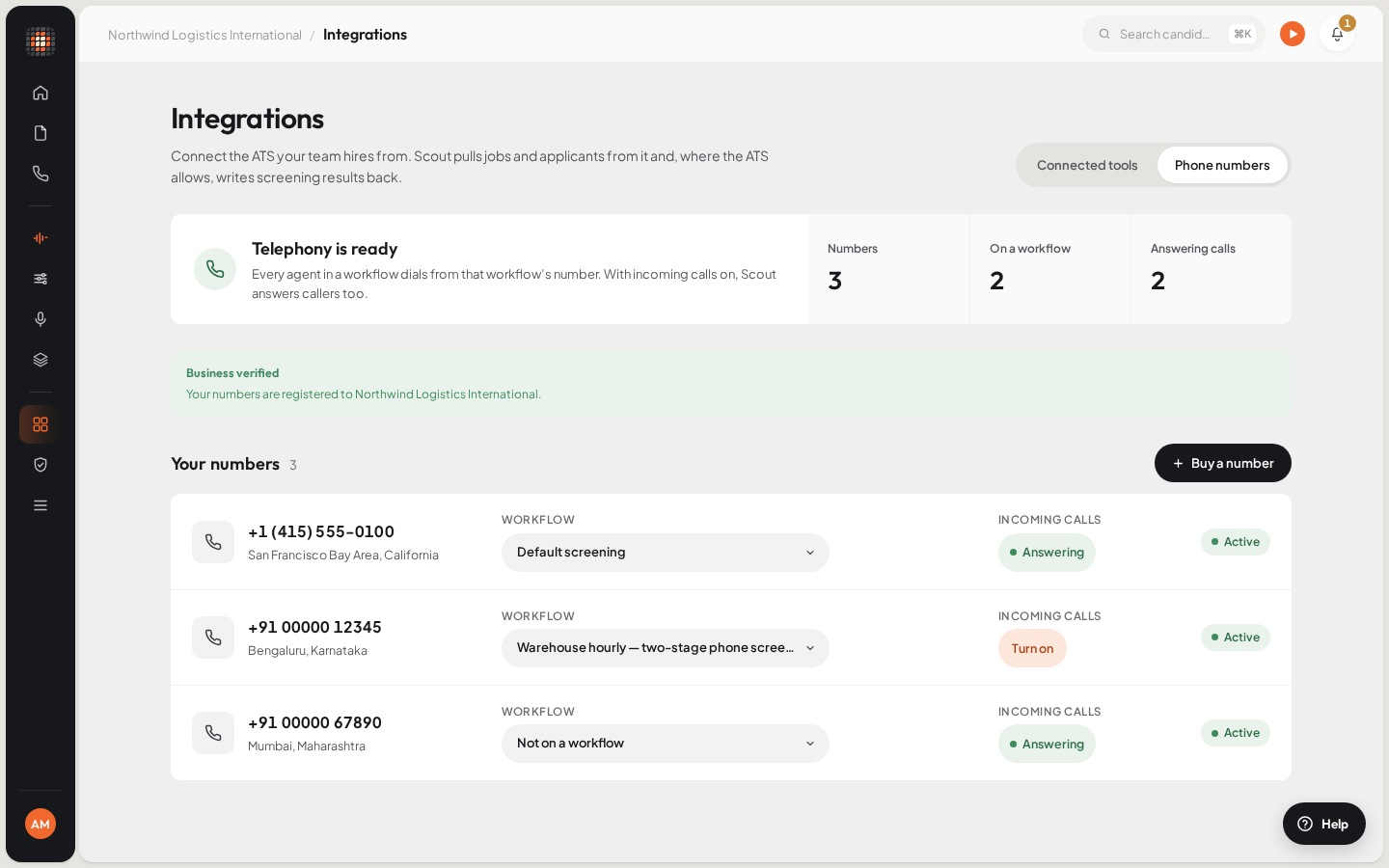
The Phone numbers tab once your business is verified: each number, the workflow that calls from it, and whether it answers incoming calls.
- 01Business verification status
- 02Buy a number
- 03The workflow that calls from this number
- 04Turn on incoming calls
On the free trial#
On the free trial you can’t verify a business or buy a number. Your calls come from Scout’s shared trial line instead, shown under Trial line on the Phone numbers tab. It rings only your own test number, which you set in Account settings › Test Call. See A test number is catching the calls.
To call candidates, add money to your wallet. You move to pay as you go, and can then verify your business and buy a number.
Verify your business#
Open Integrations in the sidebar and choose the Phone numbers tab.
ResultIf your business isn’t verified yet, you see Verify your business to get a number.
Click Verify your business.
ResultYou go to our telephony provider’s verification page. The console says which business details it asks for.
Finish verification there.
ResultYou come back to Phone numbers, which shows Checking your details and updates by itself. When it’s done, it shows Business verified.
| What you see | What to do |
|---|---|
| Finish verifying your business | You started but didn’t finish. Click Continue verification. |
| Verification didn’t go through | A detail didn’t match. Click Try again and enter the details exactly as on your documents. |
| Telephony needs verification | Your workspace needs extra checks. Contact the Scout team. |
Buy a number#
On Phone numbers, click Buy a number.
- It stays unavailable on the free trial and until your business is verified.
Choose a Country. To narrow the list, type into Area code or number.
Pick a number from the list.
Click the buy button, which names the number you picked.
ResultScout says the number is bought. It’s yours straight away and is listed under Your numbers.
Your plan includes some phone numbers. Once they’re in use, each extra number has a monthly charge from your balance; the dialog shows it before you buy, and buying agrees to it. If your balance doesn’t cover it, add money first. See pricing.
Attach it to a workflow#
A number only places calls once it’s attached to a workflow. Every agent in that workflow then calls from it, so a candidate sees one caller ID across all stages. A workflow has one number; attaching another replaces it.
Under Your numbers, use the Workflow list beside the number and choose a workflow.
- Or open the workflow in Workflows and choose the number under Calls from.
- To detach a number, choose Not on a workflow.
A workflow with no number can’t call candidates. See There’s no number to call from.
Turn on incoming calls#
Candidates often ring back the number that called them. When incoming calls are on, the number shows Answering, and Scout answers it. Scout turns this on when you buy a number. If a number shows Turn on instead, click it.
Who answers is set in the workflow the number is attached to: under Incoming calls, pick an agent (Pick who answers). Until you do, the first ready agent answers and can only take a message. See How workflows work.
Open in Scout: Open Integrations