Call a candidate now and follow up
Besides the calls a workflow places on its own, you can call a candidate yourself at any time, and send a follow-up call with the questions you still need answered. Members and admins can both do this.
Before you start
- The job has a workflow with a published, switched-on phone agent. See Assign a workflow to jobs.
Call a candidate now#
Open the job in Jobs and click the candidate to open their panel.
Click Call now.
ResultThe agent rings the candidate straight away, and the call appears on the panel as it happens.
Call now uses the agent of the candidate’s current stage, or another agent from the job’s workflow if that stage has none. It ignores calling hours and is never retried.
- If the button is greyed out, hover over it or read the line under it: the agent may need publishing or its setup finished, or the candidate has no phone number, or one without a country code.
- If the candidate asked not to be called again, the panel says so. The choice is yours.
- While a Test Call Number is set, Call now rings that number instead.
Call again from a finished call#
Open Screening calls and select the call.
Click Call again, or Call back for a call the candidate made to you. On a call that didn’t connect, the button is Call now.
Check who will be called, the number and the agent, then click Call now to dial.
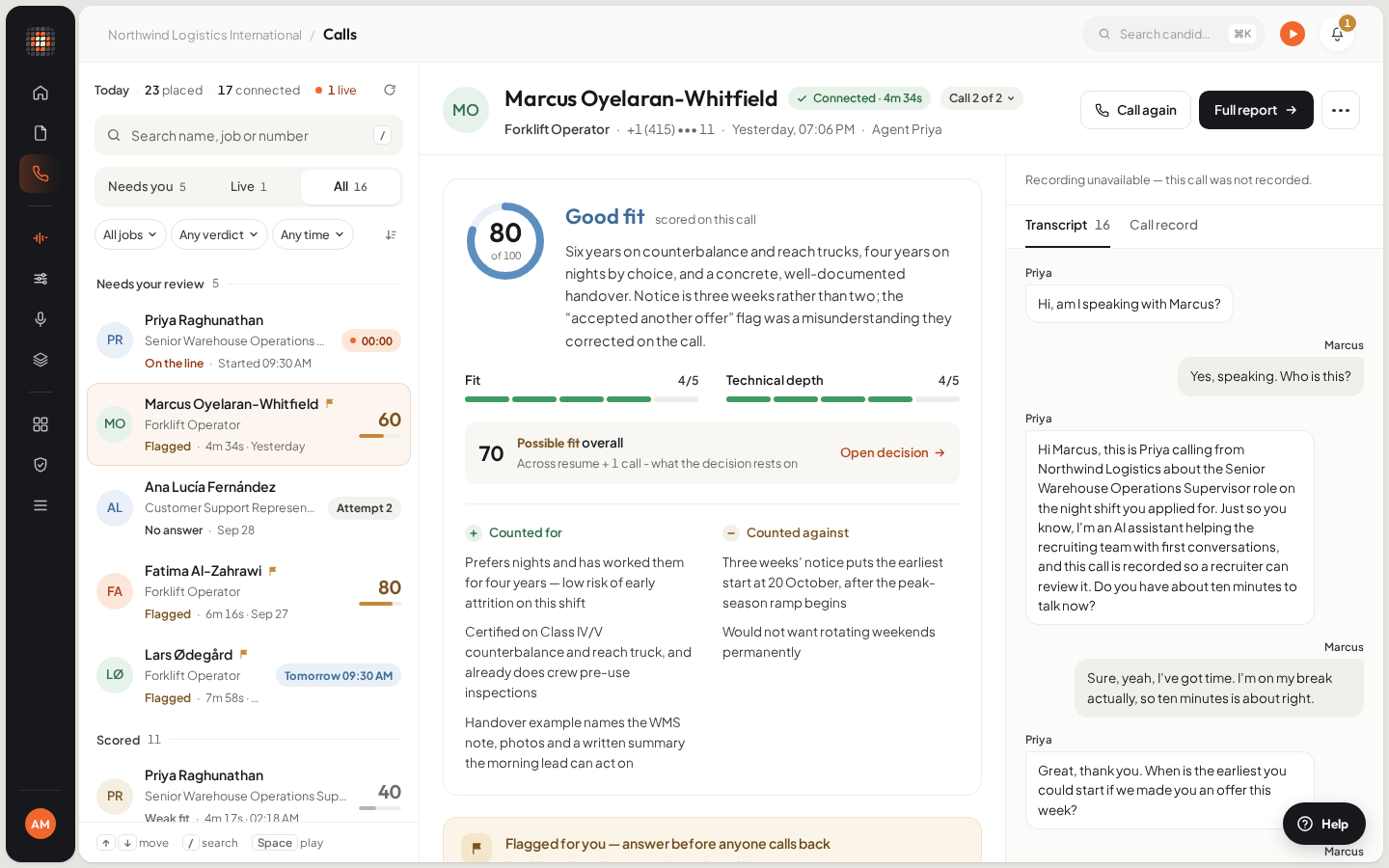
- 01Queue views: Needs you, Live, All
- 02The verdict and score for this call
- 03What counted for and against
- 04Transcript and call record
- 05Call again
Place a call from an agent#
To try an agent over a real phone, without a candidate, use Place a call:
Open the agent in Agent. In the editor’s menu, choose Place a call. (Version history also has a Place a call button.)
In New call, check the Agent, and choose the number to Call from.
Type the Number to call in full international format, with the country code.
Fill in any details the agent asks for, then click Dial.
Send follow-up questions#
A follow-up is something you want covered on the next call with a candidate, such as checking a notice period. Follow-ups belong to the candidate’s application, so items raised on different calls go out together.
Open the call in Screening calls. Under Follow-ups, type what to ask and click Add.
- You can also use Follow up on an answer, or Use on a line under Suggested by the analysis.
- Before you send them, use the pencil to reword an item or the cross to remove it.
Click Send follow-up call.
ResultScout books one call with every waiting item, within your calling hours and with your usual retries. The card shows when it’s due.
On the candidate’s panel, the waiting items show next to Send call, which does the same. To stop a booked follow-up call, click Cancel call on the card. Once the call has run, each item shows whether it was covered.
The Follow-ups role in the job’s workflow decides which agent makes the call. If the role is Off, the card says no agent makes follow-up calls, and you call the candidate yourself. See Create and activate a workflow.
When a candidate rings you#
A candidate who calls one of your numbers reaches the workflow that number is attached to. The workflow’s Incoming calls role decides who answers:
- A candidate in a stage with a phone agent reaches that stage’s agent, who can finish the screening there and then (unless you turned this off in the role).
- Anyone else, including people Scout doesn’t know, reaches the Incoming calls agent, who answers what it can and takes a message.
- If that agent isn’t ready, the first ready agent of the workflow answers, so nobody hears silence.
Incoming calls ignore calling hours. In Integrations › Phone numbers, a number that Scout answers shows Answering. If it shows Turn on instead, click it. See Get a phone number.
Open in Scout: Open Screening calls