Sign in and secure your account
You sign in to Scout with your work email and password. For extra protection, turn on two-factor authentication so a stolen password isn't enough on its own. Everything here is in your own account, so admins and members do it the same way.
Sign in#
Go to the Scout console.
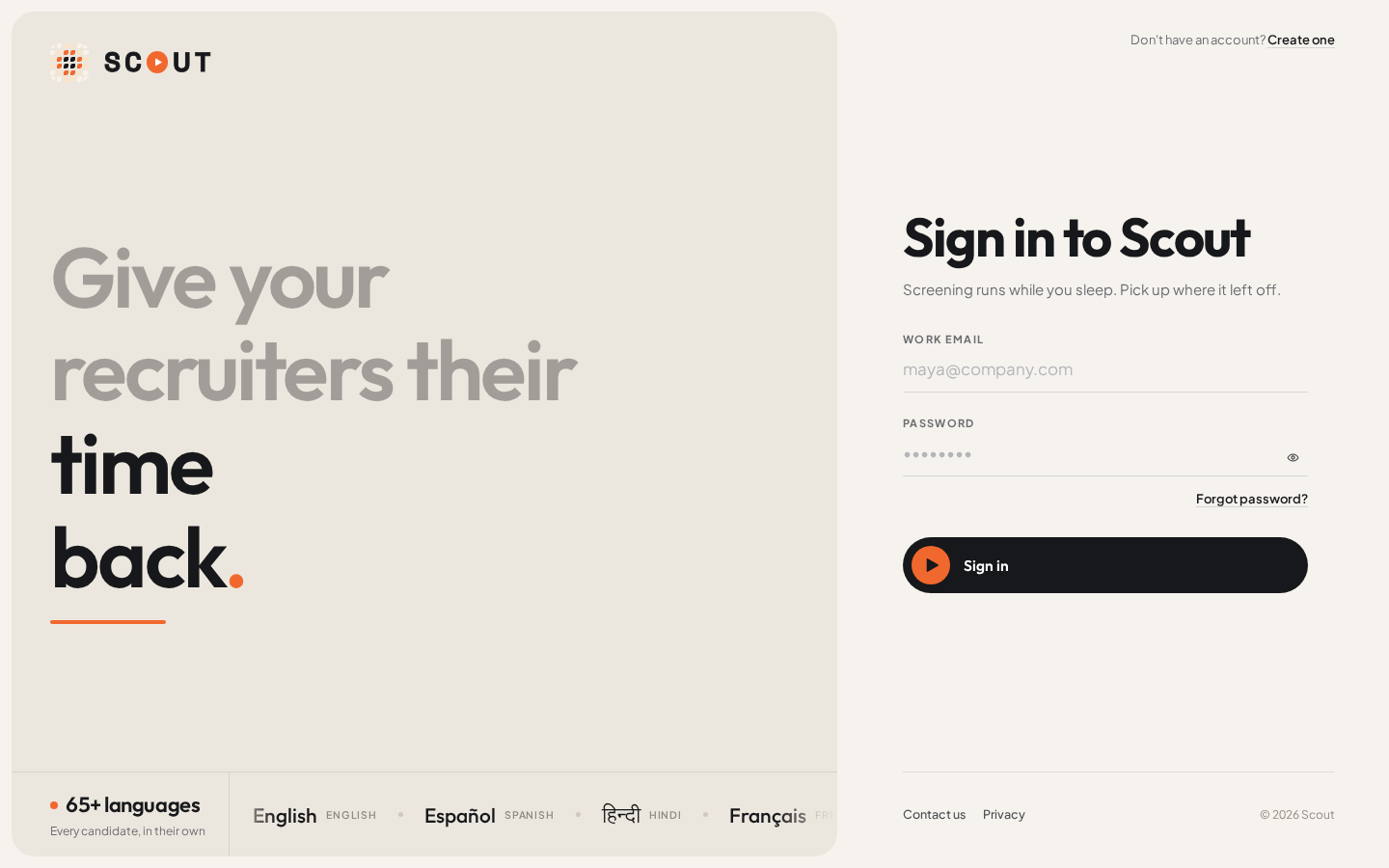
Enter your Work email and Password, then click Sign in.
ResultYou land on the page you were trying to reach, or on Overview.
If Scout says Your email isn't verified yet, click Resend verification email and open the new link. See Verify your email.
Sign in with two-factor turned on#
Sign in with your email and password as usual.
ResultYou see Two-factor verification.
Enter the 6-digit code from your authenticator app in Verification code and click Verify.
No authenticator to hand?#
On the two-factor step, click Use a recovery code.
Enter one of your saved codes in Recovery code and click Verify.
- Each code works once.
Scout emails you when a recovery code is used. If you've lost your authenticator, turn two-factor off and on again in Security to pair a new app, and you'll get a new set of codes.
Turn on two-factor authentication#
You need an authenticator app on your phone that reads TOTP codes. Most authenticator and password-manager apps do.
Open the account menu at the bottom of the sidebar and click Account settings.
Go to Security. Next to Two-factor authentication, click Enable two-factor.
Enter Your password and click Show my QR code.
Scan the QR code with your authenticator app. If it can't scan, type in the Setup key instead. Click I've added it.
Enter the current 6-digit code from the app and click Turn on two-factor.
Save the ten recovery codes somewhere safe (Copy codes copies them all), then click I've saved them.
ResultTwo-factor is on, and every other session is signed out.
Get new recovery codes#
In Security, next to Recovery codes, click Create new codes and confirm with a code from your authenticator app. Every old code stops working, and your other sessions are signed out.
Turn off two-factor#
In Security, click Turn off two-factor, then enter your password and a current code (or a recovery code). Your recovery codes stop working, and turning it back on means pairing an app again.
Reset a forgotten password#
On the sign-in page, click Forgot password?.
Enter your Work email and click Send reset link.
ResultYou see Check your email. For privacy, it looks the same whether or not the address has an account.
Open the reset email and click its link within an hour. Only the newest link works.
Enter a New password, repeat it in Confirm new password and click Update password.
- It must be 10 to 128 characters.
Click Back to sign in and sign in with your new password.
ResultResetting signs out every session on your account.
Change your password#
In Account settings › Security, click Change password. Enter your Current password and a New password, plus a code from your authenticator if two-factor is on. Every other device and session is signed out.
Sign out#
- This browser: open the account menu at the bottom of the sidebar and click Sign out.
- Everywhere: in Account settings › Security, next to Sessions, click Sign out everywhere. Every browser and device on your account is signed out, this one included. Use it if you think someone else has your password.
Switch workspaces#
If you belong to more than one workspace, the account menu lists them under Workspaces. The one you're in is marked Current. Click Switch to and the workspace's name to move to another.