Add a job
Every screening call belongs to a job. If you use a connected ATS, its jobs come into Scout on their own. For a role with no ATS behind it, you add a manual opening: paste or upload the job description, and Scout fills in the details for you to check.
Two kinds of job#
| Manual opening | Job from your ATS | |
|---|---|---|
| How it gets into Scout | You add it with New opening | It syncs from your connected ATS |
| Candidates | You add them in Scout (Add candidates) | They sync from the ATS once a workflow is assigned |
| Pipeline stages | Yours to add to, and you move candidates | The ATS’s own stages, read-only in Scout |
| Archive | In Scout | Close or archive it in the ATS |
Add a manual opening#
Open Jobs in the sidebar and click New opening.
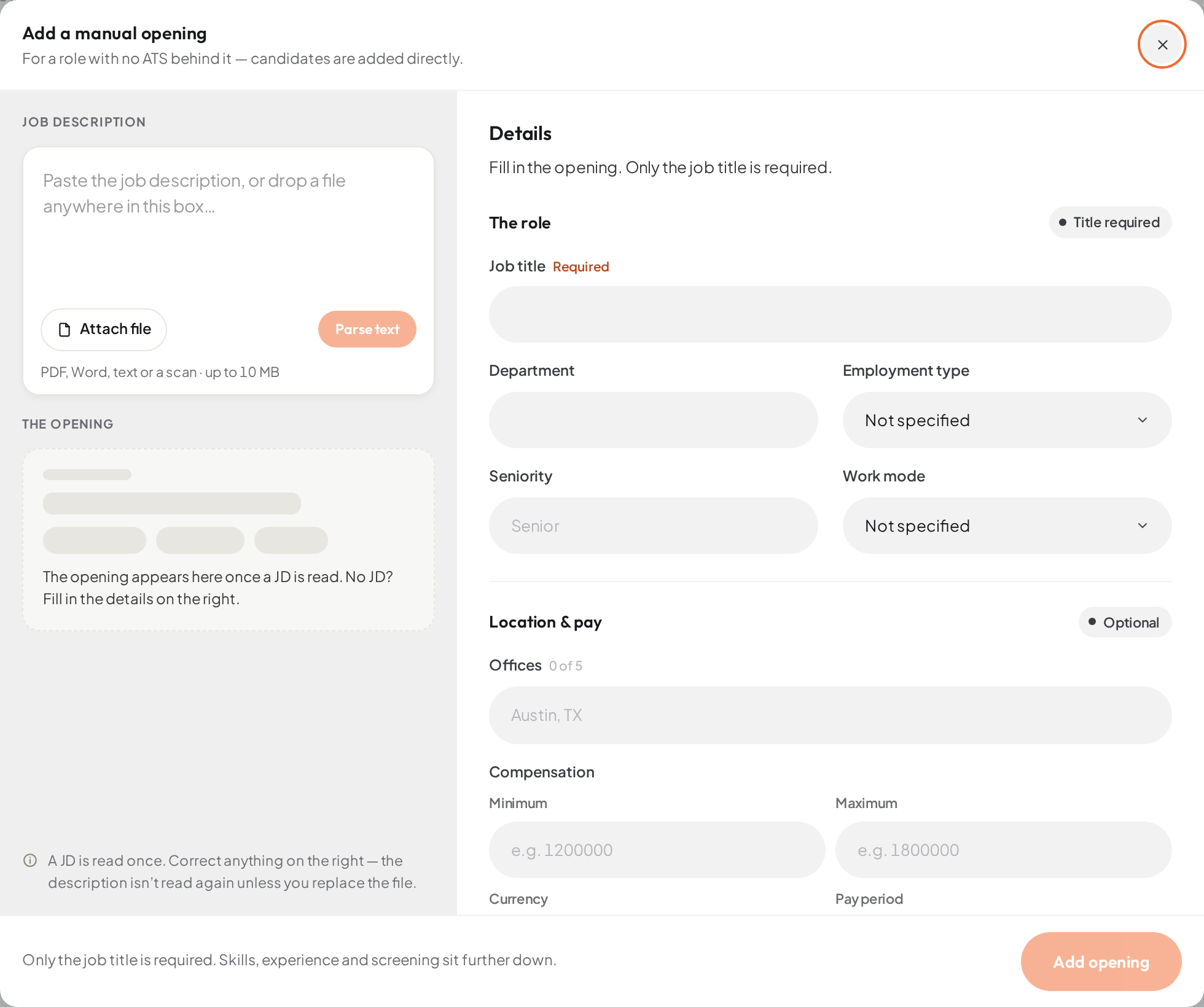
- 01Paste the job description, or drop a file
- 02Attach file
- 03Parse text reads the description into the form
- 04Add opening
ResultThe Add a manual opening dialog opens: the job description on the left, the Details on the right.
Paste the job description into the box, or click Attach file (you can also drop a file anywhere on the box).
- Files: PDF, Word (.docx), plain text, or a scan or photo of the description, up to 10 MB.
- A picked file isn’t read until you parse it, so you can remove it or choose another first.
Click Parse text (or Parse file for an attachment).
ResultScout reads the description and fills in the opening: the title, department, location, pay, experience, work mode and must-have skills it found. Anything you had already typed is kept.
Check the opening card under the description. Click any part of it to jump to that field on the right, and fix or add what’s missing.
- The role: Job title (the only required field), department, employment type, seniority and work mode.
- Location & pay: offices and compensation.
- Skills & experience: Must-have skills, Nice-to-have skills, years of experience, relocation and responsibilities.
- Description & screening: the full description the screening agent uses, and the workflow.
Under Screened by, pick the workflow that will call this job’s candidates, or leave it on Not screening yet and assign one later.
- Only active workflows for manual jobs are listed. See Assign a workflow to jobs.
Click Add opening.
ResultThe job appears in the Jobs list. Next, set it up for screening and add candidates.
If the description can’t be read#
- A file over 10 MB is refused before it uploads. Upload a shorter file or paste the text.
- A damaged or password-protected file, or a format Scout doesn’t read: paste the description instead.
- A scan with no readable text: Scout tries to read scans and photos as images. If it still finds no text, paste the description.
- Scout couldn’t pick out the details: the description is kept, but the fields stay empty. Fill them in on the right.
- A very long description is cut to its first 50,000 characters, and the dialog says so.
Jobs from your ATS#
Once an admin connects your ATS, its open jobs sync into the Jobs list on a schedule. To pull them in straight away, an admin can click Sync from ATS at the top of the Jobs page (it shows when an ATS is connected).
- The job’s details, its pipeline stages and its candidates come from the ATS. Change them there, not in Scout.
- A synced job’s candidates start syncing only once the job has a workflow: assign one in Job details with Assign a workflow. To fetch its candidates right away, use Sync now there.
- You can’t add candidates by hand to an ATS job, move them between stages, or archive the job in Scout. To stop screening it, close or archive it in the ATS.
Questions, the score mix and who gets called work the same for both kinds of job. See Set up a job for screening.
Archive or unarchive a manual job#
Archive a manual job when you’re no longer hiring for it. It moves to Closed and Scout stops calling its applicants. Its applicants, stages, workflow and call history are kept.
In the Jobs list, tick the job (or several).
Click Archive in the bar that appears, then confirm.
ResultThe jobs move to Closed.
To bring one back, pick the Closed card, tick the job and click Unarchive. It returns to the status it had, with its workflow, and Scout calls applicants again when they move into a stage that calls. Calls that were dropped while it was archived aren’t placed again.