Invite and manage your team
Admins invite people by email from Account settings › Team. Each invitation link works for 7 days, and the person joins as the role you chose.
Before you start
- You are an admin of the workspace.
- Your plan has a free seat. Pending invitations count towards your seats.
Invite someone#
Click your name at the bottom of the sidebar and choose Account settings.
Under Workspace, open Team.
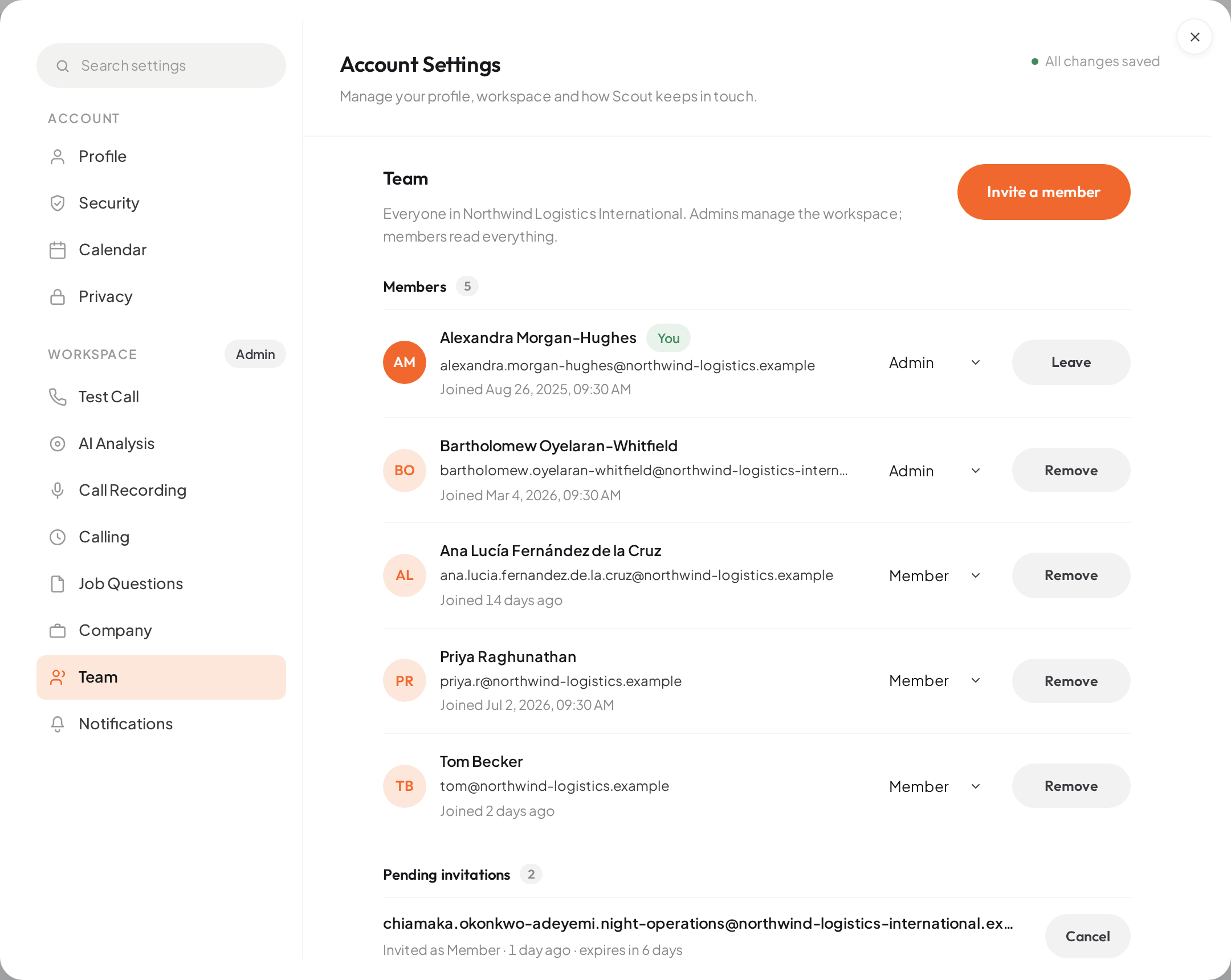
- 01Invite a member
Click Invite a member.
Enter their Email address.
Under Role, choose Member or Admin. See Roles and permissions for the difference.
Click Send invitation.
ResultScout emails them a link that expires in 7 days, and the invitation appears under Pending invitations.
If you’ve run out of seats#
Each plan includes a number of seats, and both members and open invitations use one. When they are all used, the invitation is refused with a message that your plan’s seats are “all taken or invited” and a See plans link. Cancel an invitation nobody needs, remove someone who has left, or move to a plan with more seats in Billing. See Billing, credit and plans.
Pending invitations#
Pending invitations lists everyone who hasn’t accepted yet, with the role they were invited as and when the link expires. To withdraw one, click Cancel beside it. An expired invitation drops off the list; send a new one if they still need access.
Change someone’s role#
In Account settings › Team, find the person under Members.
Pick Member or Admin from the role menu beside their name.
ResultThe new role applies straight away, and Scout lets them know their role changed.
Remove someone#
In Members, click Remove beside the person.
Confirm with Remove from workspace.
ResultThey lose access to the workspace’s jobs, candidates and calls.
Access ends when their current session next refreshes, not the instant you confirm. There is no way to reactivate a removed person: to let them back in, send a new invitation. To leave a workspace yourself, use Leave on your own row.
What the person you invite sees#
The email links to a page titled Join your team on Scout. Someone new to Scout enters a first and last name and chooses a password there. Someone who already has a Scout account leaves those fields blank and keeps their existing name and password.
They open the link in the email and click Accept invitation.
ResultScout shows You're in, and your workspace becomes the one they land in when they sign in.
They click Sign in to Scout and sign in as usual.
If the link has expired or was already used, it no longer works: send a fresh invitation. For more, see Sign-in and access problems.
Belonging to more than one workspace#
Someone invited to several workspaces signs in once and switches between them. Click your name at the bottom of the sidebar: under Workspaces, the current one is marked Current, and the others each show a Switch to link. The switcher only appears when you belong to two or more workspaces.