Edit an agent
The agent editor is where you shape everything an agent does on a call. Your edits go into a draft that saves itself; calls keep running the published version until you publish again.
Before you start
- You are a workspace admin.
- The agent exists and isn’t archived.
Open the editor#
Open Agent in the sidebar.
Under Your agents, find the agent (use Search agents or the status tabs) and click Open.
- 01Test call
- 02Playground: talk to the agent in your browser
- 03The editor's sections
- 04Call your own phone with the live version
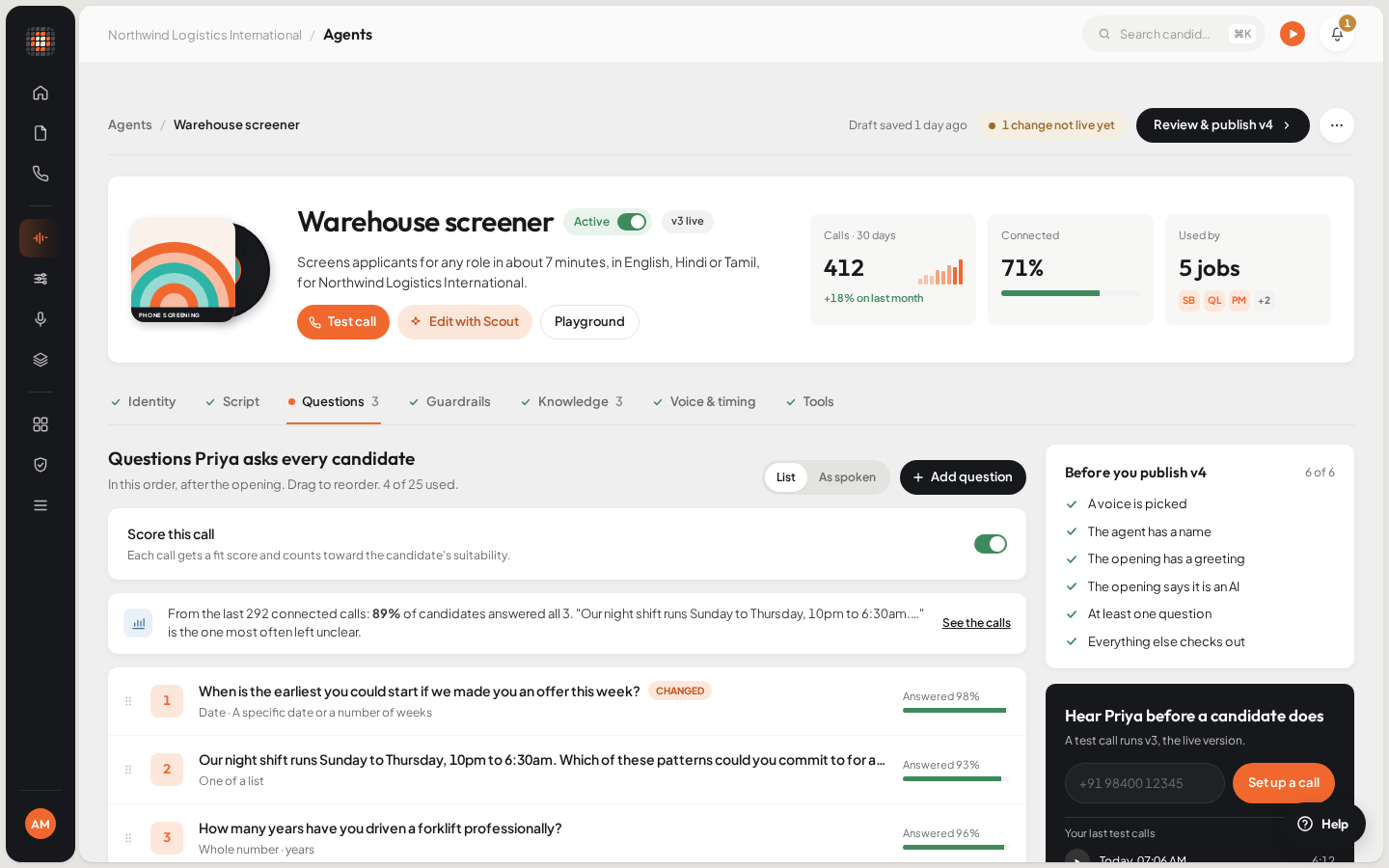
ResultThe agent’s page opens, with its sections in a row of tabs.
The bar at the top shows whether the draft is saved and how far it is ahead of what calls run, for example Not published yet. When there is something to publish, it offers Review & publish v2 (the number is the next version).
The sections#
Phone agents (Phone Screening, Interview Scheduling and Reference Check) have these sections:
| Section | What you set there |
|---|---|
| Identity | Agent name, Company name and Style notes: how the agent comes across and how it talks. |
| Script | The lines it says word for word: the opening (Identity check, Greeting, AI disclosure, Recording notice, Recording consent, Consent question) and the closing (Next steps, Farewell). |
| Questions | What it asks on every call, before each job’s own questions. For Phone Screening, also Score this call. |
| Guardrails | Lines it never crosses (Never), and what gets a call flagged for review (Flag for recruiter review when). |
| Knowledge | What it can tell candidates about your company. |
| Voice & timing | Language, voice, delivery, background sound, the longest a call can run, and the time zone. |
| Tools | What the agent can do on a call beyond talking. |
Video Interview agents have their own sections:
| Section | What you set there |
|---|---|
| Identity | Its name, company and style. |
| Topics | The topics to cover: for each, Topic, What to find out, How deep and whether it Looks at the screen. |
| Interview | Link stays open, Rejoin after a drop, Camera and screen, Languages candidates can pick and the interview length. |
| Voice & language | The voice and the main language. |
| Guardrails | As for phone agents. |
| Knowledge | As for phone agents. |
| Closing | The greeting, the AI disclosure and how the interview ends. |
Your draft saves itself#
A valid draft saves a moment after you stop typing; the bar shows Saving… and then when it last saved. If something in the draft is invalid, the bar shows how many problems block the save, and a mark on the section tab shows where. Click the message to jump to the first problem.
If you try to leave with unsaved edits, Scout asks Leave without saving?. Choose Keep editing to stay, or Discard changes to throw them away.
Questions#
Click Add question and pick what to add:
- A question: one thing to find out, saved as an answer.
- Probe the resume: follow-ups on what the candidate’s resume says. Skipped when there is no resume.
- Technical questions: drawn from each job, worded fresh on each call.
- Communication topics: a conversation that shows how the candidate talks.
- Questions of your own: your brief, asked in the agent’s own words.
Each job can add its own questions on top of these. See Set up a job for screening.
On a Phone Screening agent, Score this call is on by default: each call gets a fit score and counts toward the candidate’s suitability. Turn it off for an offer follow-up, a check-in or a survey. The answers are kept, but the call gets no fit score. See Scores and fit bands.
What every agent always does#
Some behaviour is built in and can’t be switched off:
- It says it’s an AI. AI disclosure is required: the draft can’t be published while it’s empty, and the agent says it aloud on every call.
- It asks before recording. When call recording is on for your workspace, the agent asks the candidate for permission. Left blank, Recording consent uses Scout’s own question.
- It keeps to the standard guardrails. Always on for every agent lists them: never promise compensation, never give legal advice, never reveal a hiring decision, never ask about protected characteristics, always honour an opt-out at once, and more.
Whether calls are recorded is a workspace setting, not a per-agent one. The editor’s Record the call row shows the current setting; an admin changes it under Call Recording in the workspace settings. See Workspace settings.
Flag for recruiter review when is checked after the call ends: a matching call is flagged for a person to review. It isn’t a live handoff during the call.
Language and voice#
In Voice & timing, pick the Language first: it sets which voices can speak it. Detect automatically answers in whatever language the candidate uses. With a fixed language, you can add up to four more under Also speaks with Add a language; the agent switches when the candidate does and falls back to the main language for anything else. Leave Also speaks empty and it answers only in the main language.
If your workspace has saved voices, the picker shows Voice · from My voices. Otherwise use Pick a voice. To save voices for your team to choose from, see Voices and Voice Studio.
Limits#
| What | Limit |
|---|---|
| Items in Questions (or Topics) | Up to 25 |
| Knowledge entries | Up to 10 |
| Never guardrails | Up to 12 |
| Flag for recruiter review when conditions | Up to 6 |
| Next steps lines | Up to 6 |
| Other languages under Also speaks | Up to 4 |
| Longest a call can run (seconds) | 60 to 3,600 seconds (default 900, which is 15 minutes) |
| Link stays open (video) | 1 to 14 days (default 3) |
Tools#
Every phone agent can Save each answer, End the call and Know the time; these are marked Always on. An Interview Scheduling agent also has the calendar tools it needs to book a slot: Check availability, Propose slots, Book an interview slot and Send a confirmation email.