Create and activate a workflow
A workflow is where you decide who contacts a candidate at each stage of a pipeline. New workflows start as drafts and call nobody until you activate them.
Before you start
- You are a workspace admin.
- At least one published agent. See Test and publish an agent.
- For an ATS pipeline, a connected ATS whose stages have synced. See Connect your ATS.
- A phone number to call from, unless you’re on the free trial. See Get a phone number.
Create the workflow#
Open Workflows in the sidebar and click New workflow.
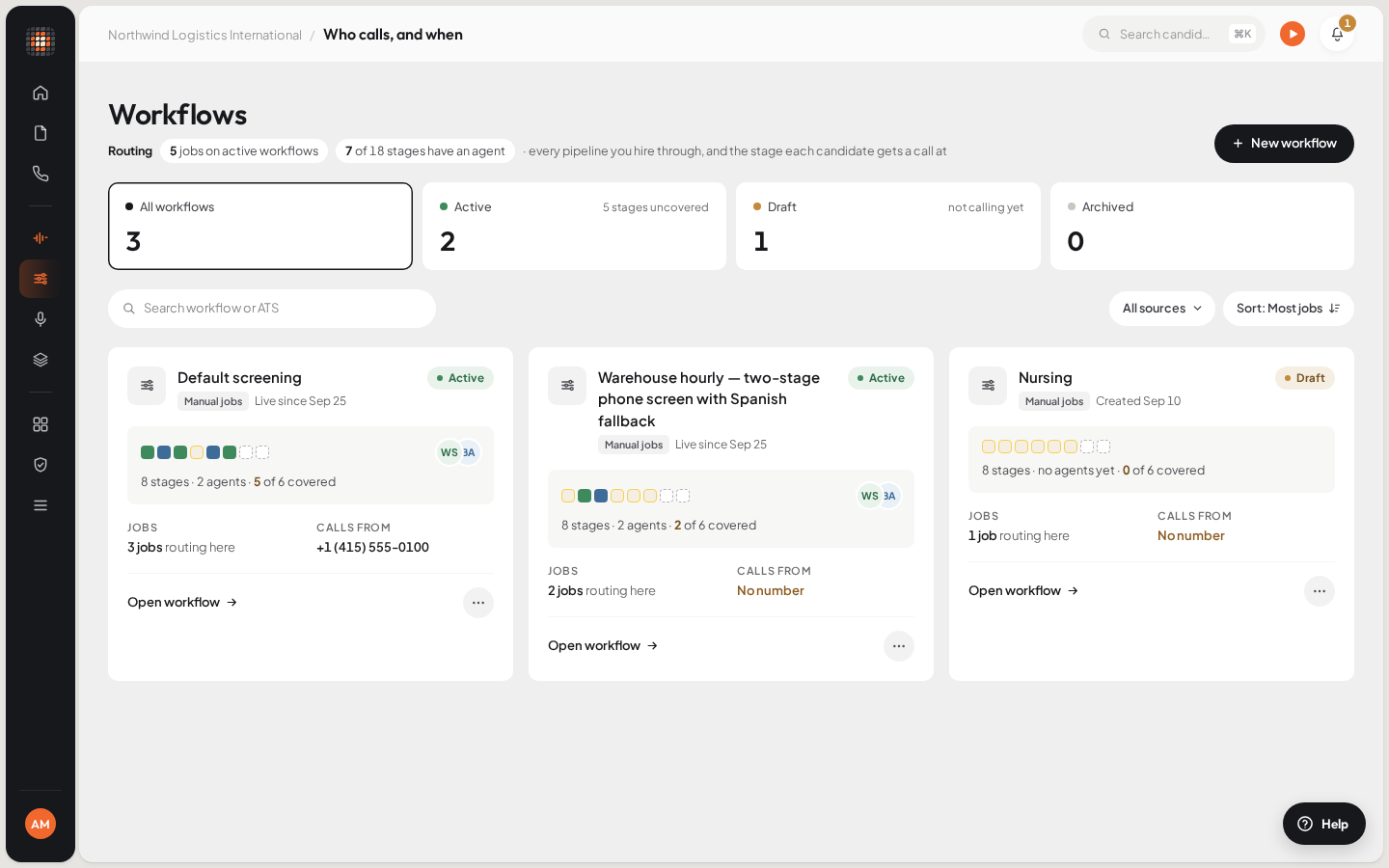
- 01New workflow
- 02A draft workflow calls no one
- 03The number the workflow calls from
Type a Workflow name. Names must be unique in your workspace.
Choose the Source: one of your ATS connections, or Manual jobs (no ATS).
ResultThe Pipeline list fills with that source’s stages, in its own order.
For each stage you want covered, open Pick who calls and choose an agent. Leave a stage on Nobody calls to skip it.
- Agents marked Coming soon can’t be picked yet.
- An end stage, such as a rejected or hired stage, shows add a call and is normally left empty.
Optional: set Call only if the resume matches at least to hold back Scout’s first call for weaker resumes. A job can set its own minimum in Job setup.
Click Create workflow.
ResultThe workflow opens, marked Draft. Nothing calls candidates yet.
Set up each stage#
Once the workflow exists, open it to see options under each stage, depending on the agent’s type:
| Agent type | Options under the stage |
|---|---|
| Phone Screening, Interview Scheduling | Call again while they stay in this stage: when on, choose How often and how many more times. Moving the candidate on stops it. |
| Video Interview | Link stays open (1 to 14 days), Reminder 1 day before it closes, and If it closes untaken. On an ATS workflow, you can also send the result to the ATS as a note. |
| Reference Check | Nothing to set. The agent calls each reference added on the candidate’s panel. |
Choose the number and add notes#
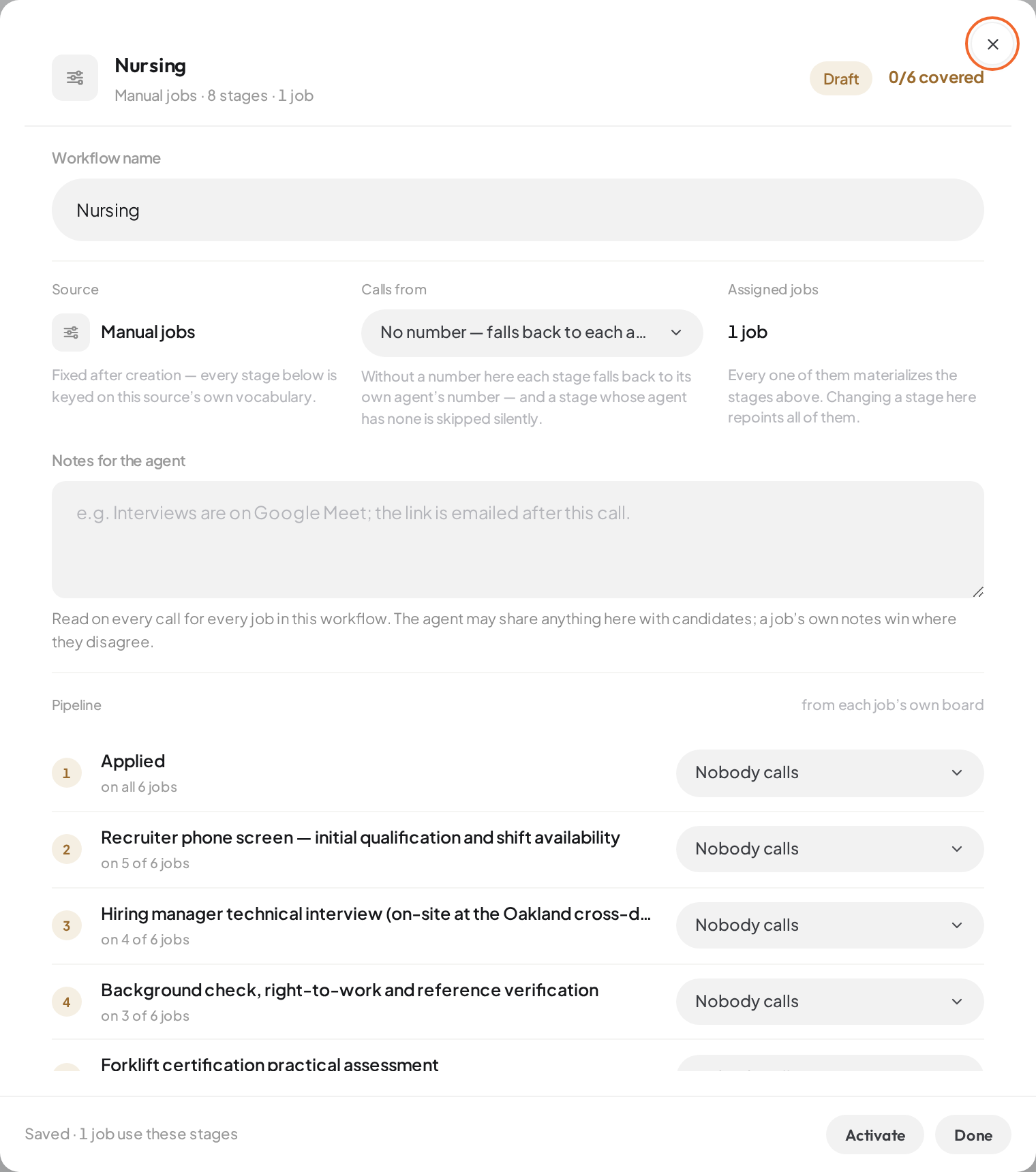
A draft workflow in the editor. Until you click Activate, it calls nobody.
- 01Calls from: the number this workflow dials from
- 02Notes for the agent
- 03Pick who calls at each stage
- 04Activate: until then, nobody is called
Under Calls from, pick the phone number every stage dials from. Candidates then see one caller ID at every stage.
- Each number can belong to one workflow at a time. Numbers you own appear here once bought in Integrations › Phone numbers.
Optional: under Notes for the agent, add anything every call on these jobs should know, such as how interviews are run. The agent may share these notes with candidates, and a job’s own notes win where they disagree.
Set follow-ups and incoming calls#
Under Beyond the pipeline, pick an agent for each role. Only agents that talk to candidates on the phone, are published and are switched on can take one; the others are listed greyed out, with the reason.
- Follow-ups: who calls when someone sends follow-up items from a call. Choose Off to make your team place those calls themselves.
- Incoming calls: who answers when someone rings the workflow’s number. Keep Returning a stage’s call? That stage’s agent answers ticked so a candidate in a stage with a phone agent reaches that agent.
A new workflow fills both roles with its first phone agent until you choose otherwise.
Save and activate#
Click Save changes. Saving pushes your stages and roles to every job already assigned to this workflow.
Click Activate.
ResultThe status changes to Active, and the workflow can now be assigned to jobs.
Activating checks every agent the workflow uses. If one can’t take a call on its own, Scout shows Workflow References An Unusable Agent and lists every problem at once, such as an agent with no published version or one that is switched off. Fix them and activate again.
Some things don’t block activation but are shown as warnings that stay on screen, for example no stages mapped yet, a stage with no agent, or no phone number attached. Each one means some calls will be skipped until you fix it.
Next, assign the workflow to jobs.
Change or delete a workflow#
Open a workflow from its card with Open workflow to change stages, options or roles, then click Save changes. The Source is fixed once a workflow is created.
On the workflow’s card, open the menu and choose Delete workflow.
Read the list of jobs that will stop getting AI calls, and any calls in progress.
- Deleting unassigns those jobs, cancels their scheduled calls and frees the phone number for another workflow.
Click Delete.