Quickstart: your first screening call
This is the shortest path from an empty workspace to a scored screening call. Each step links to a fuller article if you need more detail.
Before you start
- A Scout account with the admin role. See Get access to Scout.
- Your own phone, to hear the agent before a candidate does.
1. Bring in a job#
If you have an ATS#
Open Integrations in the sidebar and click Add an ATS.
Choose your ATS and enter its credentials. Each provider's article says where to find them, starting from Connect your ATS.
Open Jobs and click Sync from ATS.
ResultYour open jobs, their pipeline stages and their candidates appear in the Jobs list.
If you don't have an ATS#
Open Jobs and click New opening.
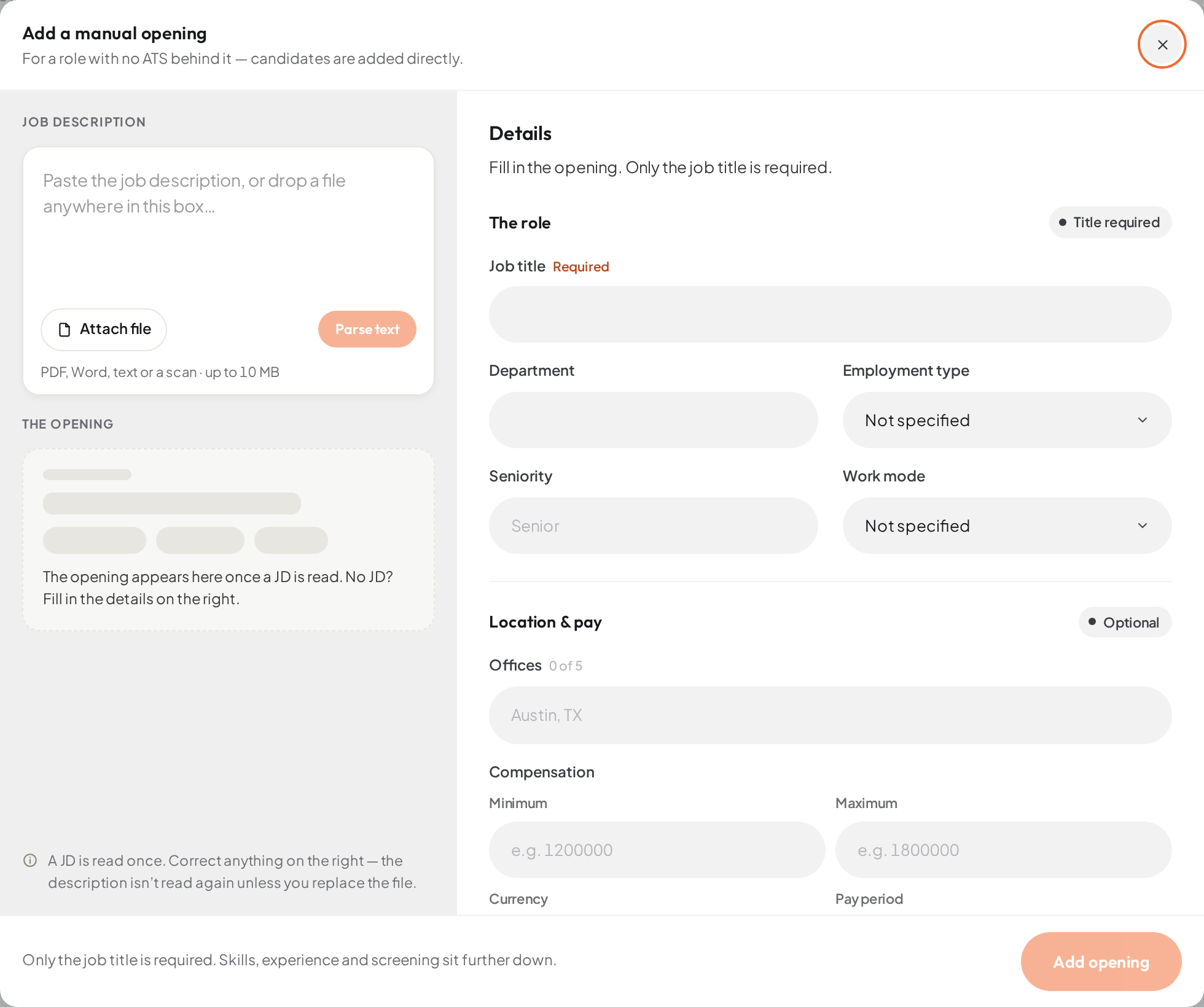
- 01Paste the job description, or drop a file
- 02Attach file
- 03Parse text reads the description into the form
- 04Add opening
ResultThe Add a manual opening dialog opens.
Paste the job description, or click Attach file, then click Parse text (or Parse file).
ResultScout fills in the opening from the description. Check it and fix anything that's off. Only the job title is required.
Leave Screened by as it is for now and click Add opening.
See Add a job for the details.
2. Create an agent from a template#
Open Agent in the sidebar and click New agent.
Choose Phone Screening. Scout starts you from its template, with a working script and questions. To write your own instead, turn on Start blank first.
Give the agent a name and say who it is, then review it and click Create as draft.
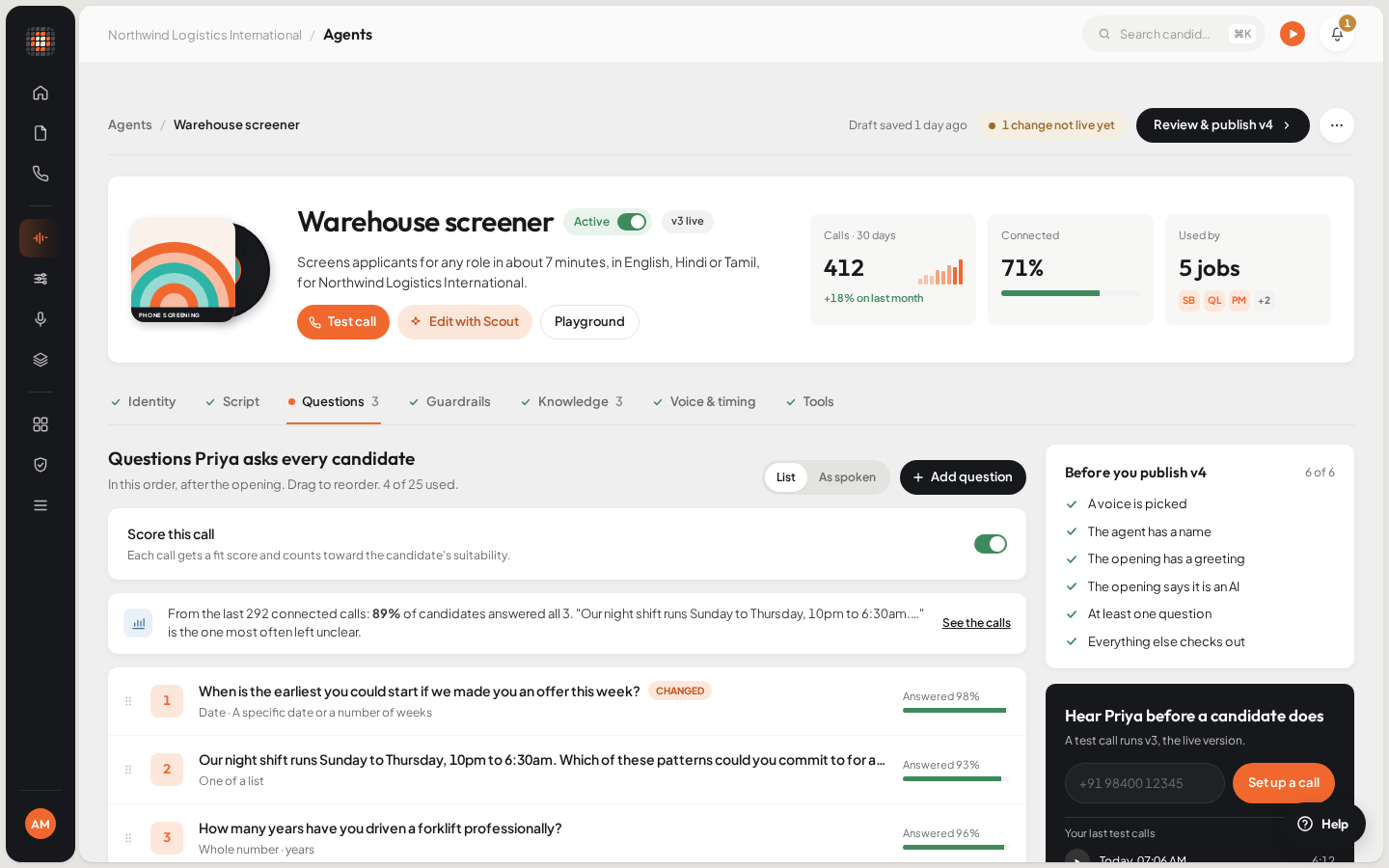
- 01Test call
- 02Playground: talk to the agent in your browser
- 03The editor's sections
- 04Call your own phone with the live version
ResultThe agent editor opens on your draft. It saves as you go.
See Create an agent and Agent types and templates.
3. Test it on yourself, then publish#
Open the Playground, choose your agent, select The draft and talk to it in your browser.
- A draft call leaves no call record, transcript or recording.
In the editor, work through the Before you publish checklist until nothing is left to fix.
Click Review & publish, add Notes (optional) if you like, and publish.
ResultVersion 1 is live. Calls always run a published version, never the draft.
In the editor's test call card, enter your own number and click Call me to hear the live version on your phone.
See Test and publish an agent.
4. Create and activate a workflow#
Open Workflows and click New workflow.
Enter a Workflow name and choose the Source: your ATS, or Manual jobs (no ATS).
- The source can't be changed later.
At the stage where the first call should happen, open Pick who calls and choose your agent. Then click Create workflow.
ResultThe workflow is saved as a draft: Draft — nothing calls candidates until you activate this workflow.
Under Calls from, choose the number to call from. If you have none yet, see Get a phone number. On the free trial you can skip this: calls use the trial line.
Click Activate.
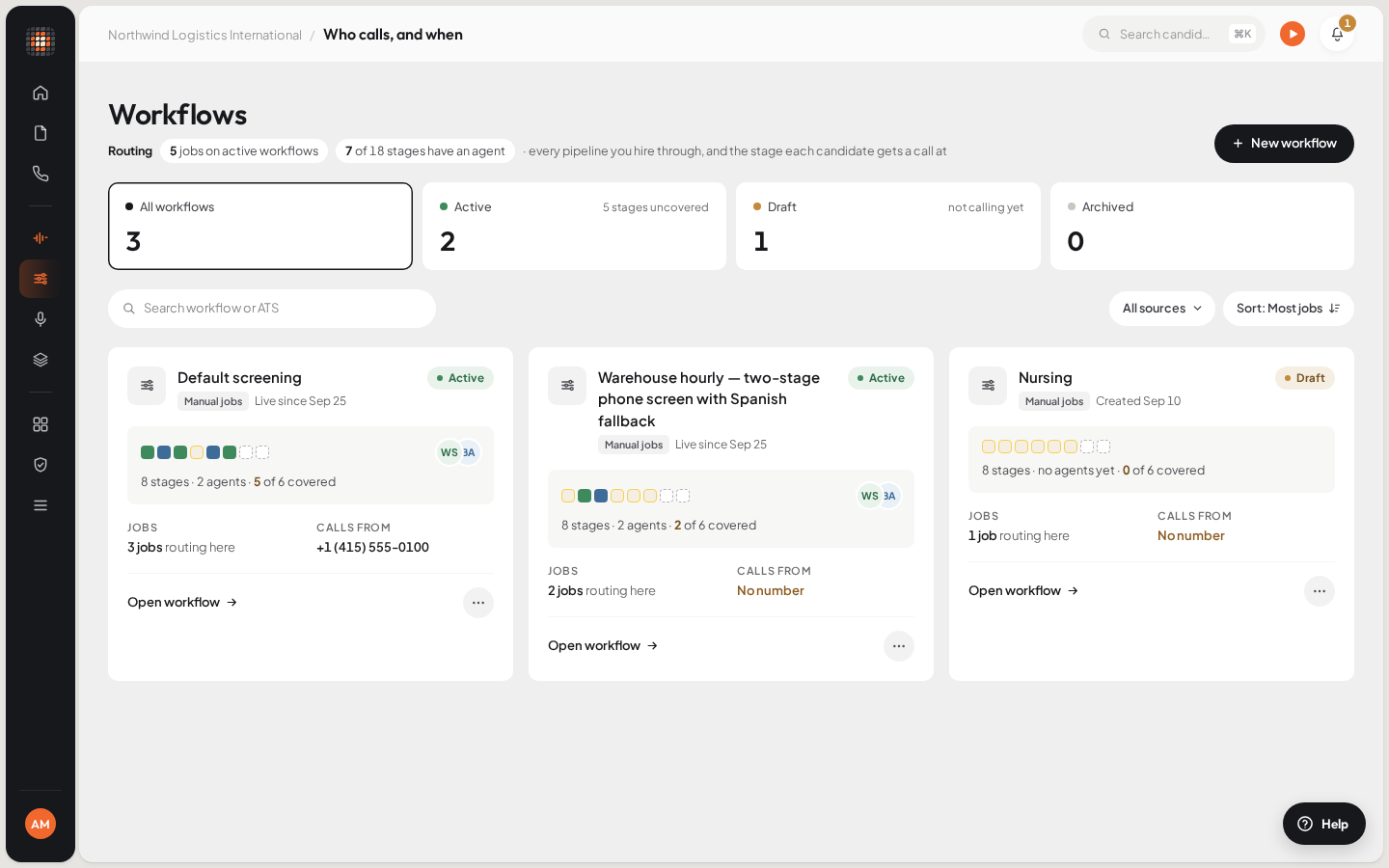
- 01New workflow
- 02A draft workflow calls no one
- 03The number the workflow calls from
ResultThe workflow is active and can be assigned to jobs.
See Create and activate a workflow.
5. Assign the workflow to the job#
Open the job in Jobs and go to its Job details tab.
Click Assign a workflow, choose the workflow you activated and click Assign.
Scout shows what the assignment changes before you confirm. To assign several jobs at once, see Assign a workflow to jobs.
6. Get a candidate called#
With an ATS, there's nothing more to do. Screening starts on the next applicant sync: a candidate who reaches a stage that has an agent gets called.
Without an ATS, add a candidate yourself:
On the job, click Add candidates and stay on Add manually.
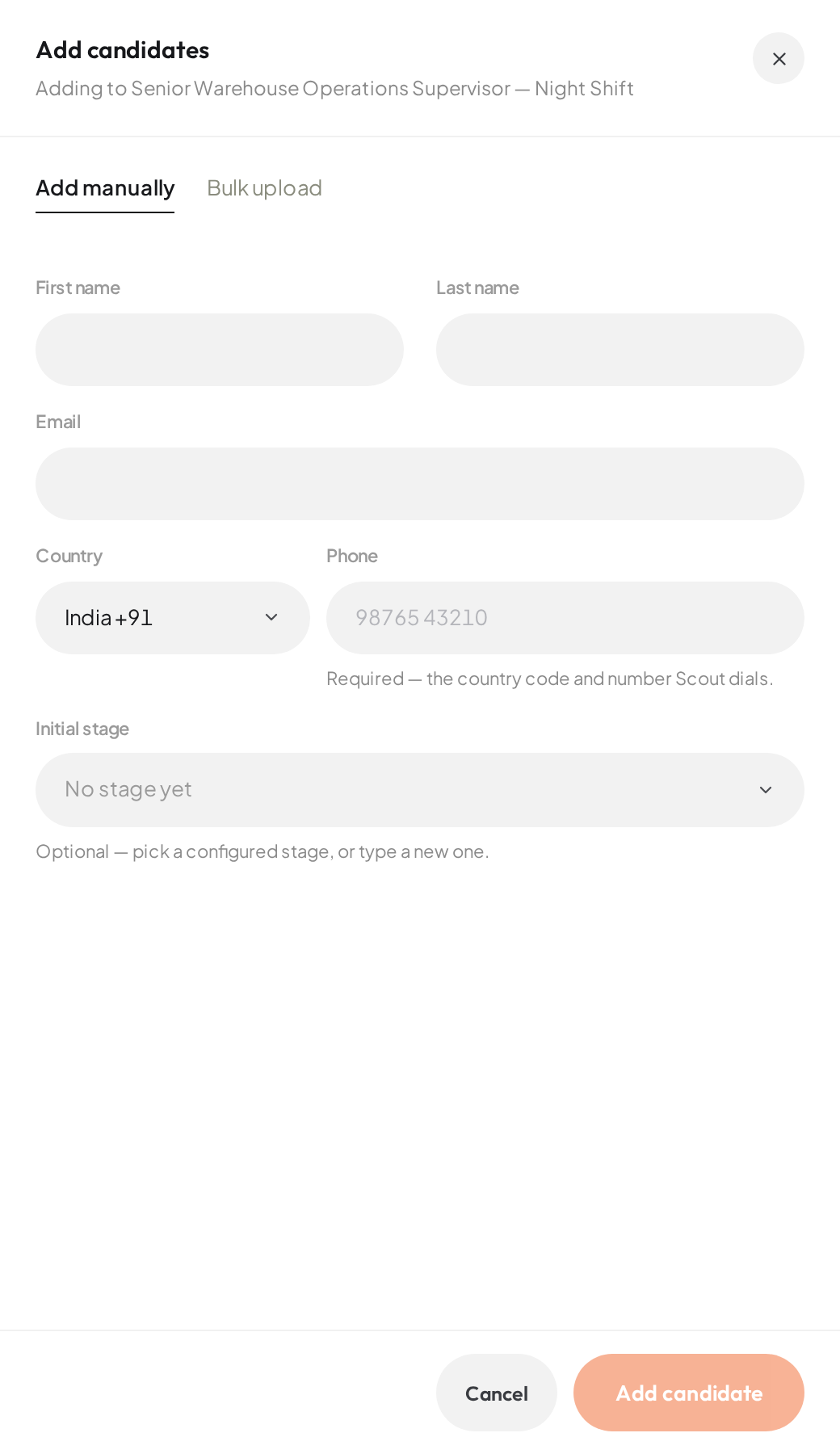
- 01Add one candidate by hand
- 02Upload resumes or a spreadsheet
Enter the candidate's name and phone number with its country code. For a first try, use your own number.
Set Initial stage to the stage where your agent calls, then click Add candidate.
ResultScout warns you that adding the candidate places a real call, and calls them within calling hours.
See Add candidates. Automatic calls ring only within the workspace's calling hours, in the candidate's own time. See Calling hours, retries and time zones.
7. Review the call#
Open Screening calls in the sidebar. Calls that are ready for you are under Needs you.
Select the call.
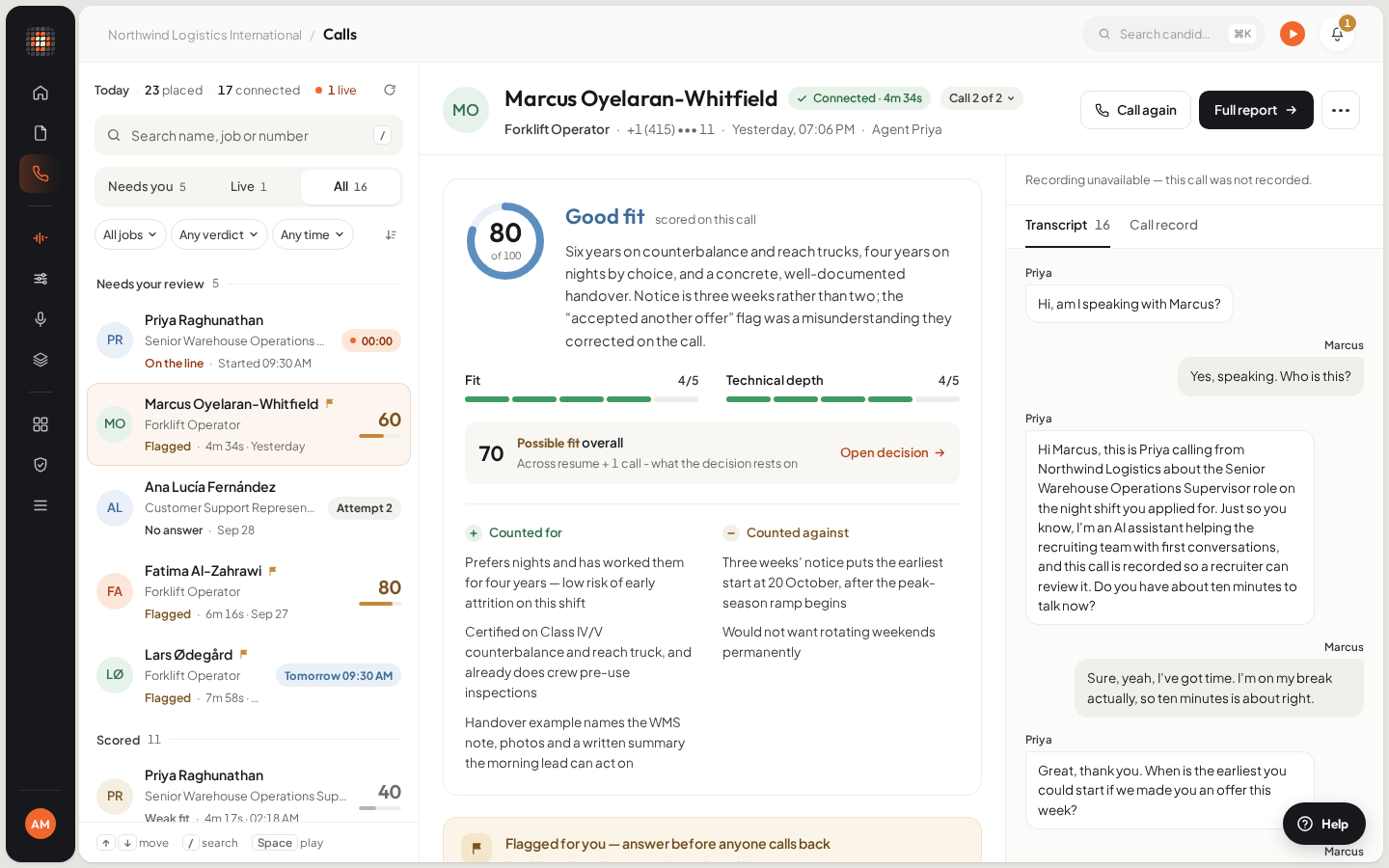
- 01Queue views: Needs you, Live, All
- 02The verdict and score for this call
- 03What counted for and against
- 04Transcript and call record
- 05Call again
ResultThe pane shows the verdict and score, What they told us, the recording and the transcript.
The score is guidance. Read the answers, then decide what happens next. See Review a screening call.
Nothing happened?#
Work through Calls aren't going out. The usual causes are a workflow that is still a draft, a stage with no agent, or calling hours.