Find your way around
The Scout console has a sidebar on the left with every page, a header along the top, and your account menu at the bottom of the sidebar. This page walks through each of them.
The sidebar#
The sidebar groups pages into three sections. It narrows to icons while you work and opens when you point at it. Click Keep sidebar open to keep the labels showing.
| Page | What it's for |
|---|---|
| Overview | Your day at a glance: calls placed, connection rate, live calls, candidates who need you, and recent activity. |
| Jobs | Every job, synced or added by hand. Open one to see its candidates, its details and its Job setup. |
| Screening calls | Every call, with the ones waiting for you under Needs you. Open a call to read the verdict, answers and transcript. |
| Agent | Your agents and templates. Build, edit, test and publish the AI callers. |
| Workflows | Which agent calls at which stage, and the number calls come from. |
| Voice Studio | Find and save voices for your agents. |
| Digital twin | Teach Scout how you screen. |
| Integrations | Your ATS connection under Connected tools, and Phone numbers. |
| Call logs | Every step each call took, with filters and a CSV export. |
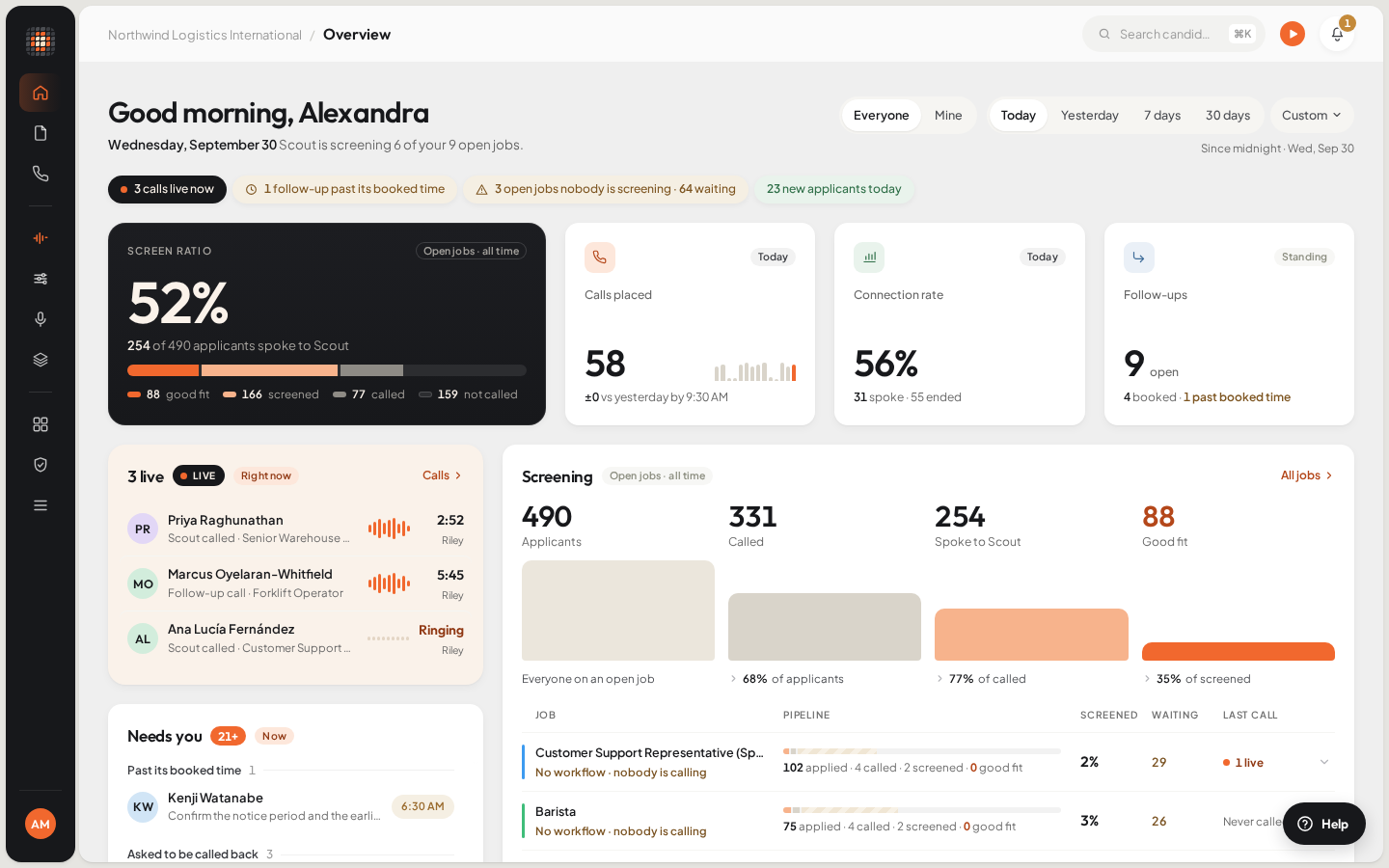
The Overview page, with the sidebar on the left.
- 01The sidebar: every part of Scout
- 02Notifications
- 03Help & feedback
Quick-create buttons#
While the sidebar is open, a + appears at the end of two rows: on Jobs it opens New opening, and on Agent it opens New agent. Only admins see the one on Agent.
The header#
- Where you are: your workspace's name and the page you're on.
- Live now: how many calls and video interviews are running, against what your plan allows at once.
- `Free trial`: shown while the workspace is on its free minutes.
- `Agent Studio` (admins): opens the chat where you build an agent by describing it.
- The bell: your notifications (see below).
The account menu#
Click your name at the bottom of the sidebar. The menu shows your email and workspace, and these items:
- `Workspaces`, if you belong to more than one: click Switch to and a workspace's name to move.
- `Account settings`: your profile and security, and the workspace's settings.
- `Help & feedback`: write to the Scout team.
- `Sign out`.
Account settings#
Account settings opens over the page you're on, so closing it puts you back where you were. It has two groups:
| Group | Sections | Who sees it |
|---|---|---|
| Account | Profile, Security, Calendar, Privacy | Everyone. These are yours alone. |
| Workspace | Test Call, AI Analysis, Call Recording, Calling, Job Questions, Company, Team, Notifications | Admins. The group is marked Admin, and changes apply to the whole workspace. |
See Sign in and secure your account and Workspace settings.
Notifications#
The bell is in the header, and at the bottom of the sidebar next to your name. It opens Notifications, with All, Unread and Alerts tabs. Alerts are things that need fixing, such as an ATS connection. Click Mark all as read to clear the count.
Help & feedback#
Click Help in the corner of any page, or Help & feedback in the account menu.
ResultYou see How can we help?
Choose Problem, Idea or Question, and write your message.
Optionally, click Add a screenshot. Scout attaches the page you're on and your workspace for you.
Click Send.
ResultA person on the Scout team reads it and replies by email.
See Get help.