Connect your ATS
Connecting your applicant tracking system (ATS) brings its jobs, pipeline stages and applicants into Scout, so you don’t add them by hand. Connecting calls no one: Scout only screens applicants on jobs you add to a workflow.
Before you start
- You’re a workspace admin.
- You can sign in to your ATS with enough access to create the credentials it asks for. Each ATS’s page below says what you’ll need.
Supported ATSs#
Scout connects to six ATSs. What each one brings in, and whether screening results can go back, differs:
| ATS | What Scout pulls | Results back to the ATS | You’ll need |
|---|---|---|---|
| Greenhouse | Jobs, stages, candidates and resumes | Yes: notes, Scout tags and a call transcript file | API client ID + secret |
| Workable | Jobs, stages, candidates and resumes | Yes, as comments | Subdomain + API key |
| Recruitee | Jobs, stages, candidates and resumes | Yes, as notes | Company ID + API token |
| Breezy HR | Jobs, stages, candidates and resumes | Yes, as notes | An API key |
| BambooHR | Jobs with their careers-page descriptions, stages, candidates and resumes | No | Company domain + API key |
| Zoho Recruit | Jobs and stages. Candidate sync is not available yet. | Notes, once candidates sync | A Zoho sign-in |
What goes back, and where in the ATS it lands, is set per connection. See Write results back to your ATS.
Other ATSs are on the roadmap. They’re listed under Coming soon on the Integrations page, but you can’t connect them yet. If yours isn’t there, request it.
Connect an ATS#
Open Integrations in the sidebar. The Connected tools tab opens.
ResultWith nothing connected yet, you see Connect your ATS to start screening and the Choose your ATS list. Once something is connected, it is listed under Your connections, and the rest are under Add an ATS.
Click Connect beside your ATS.
ResultA form opens, with the steps for getting the credentials from your ATS at the top.
Fill in the fields. Every ATS asks for these two, plus its own credentials:
- Label: a name for this connection. It starts as the ATS’s own name.
- Region: the country Scout assumes for a candidate’s phone number when the number has no country code of its own.
Click the connect button at the bottom of the form, for example Connect Greenhouse.
ResultScout checks the credentials with your ATS before it saves anything. The connection then appears under Your connections as Syncing, and your jobs appear in Jobs as they sync.
Members who open Integrations before anything is connected are asked to get an admin to connect the ATS. They don’t see Connect buttons.
How syncing works#
- Scout pulls from your ATS on a regular schedule. Your ATS never has to push anything to Scout.
- Every job and its pipeline stages come in from each connection. Candidates, their applications and resumes come in for the jobs you’ve assigned to a workflow.
- When a candidate moves stage in your ATS, Scout picks up the move on its next sync. If the workflow has an agent on the new stage, that’s what starts a call. See How workflows work.
- Each connection shows when it Last synced.
To pull straight away instead of waiting: admins can click Sync from ATS on the Jobs page to bring in jobs, and on an ATS job that has a workflow, Sync now pulls its candidates.
Connection status#
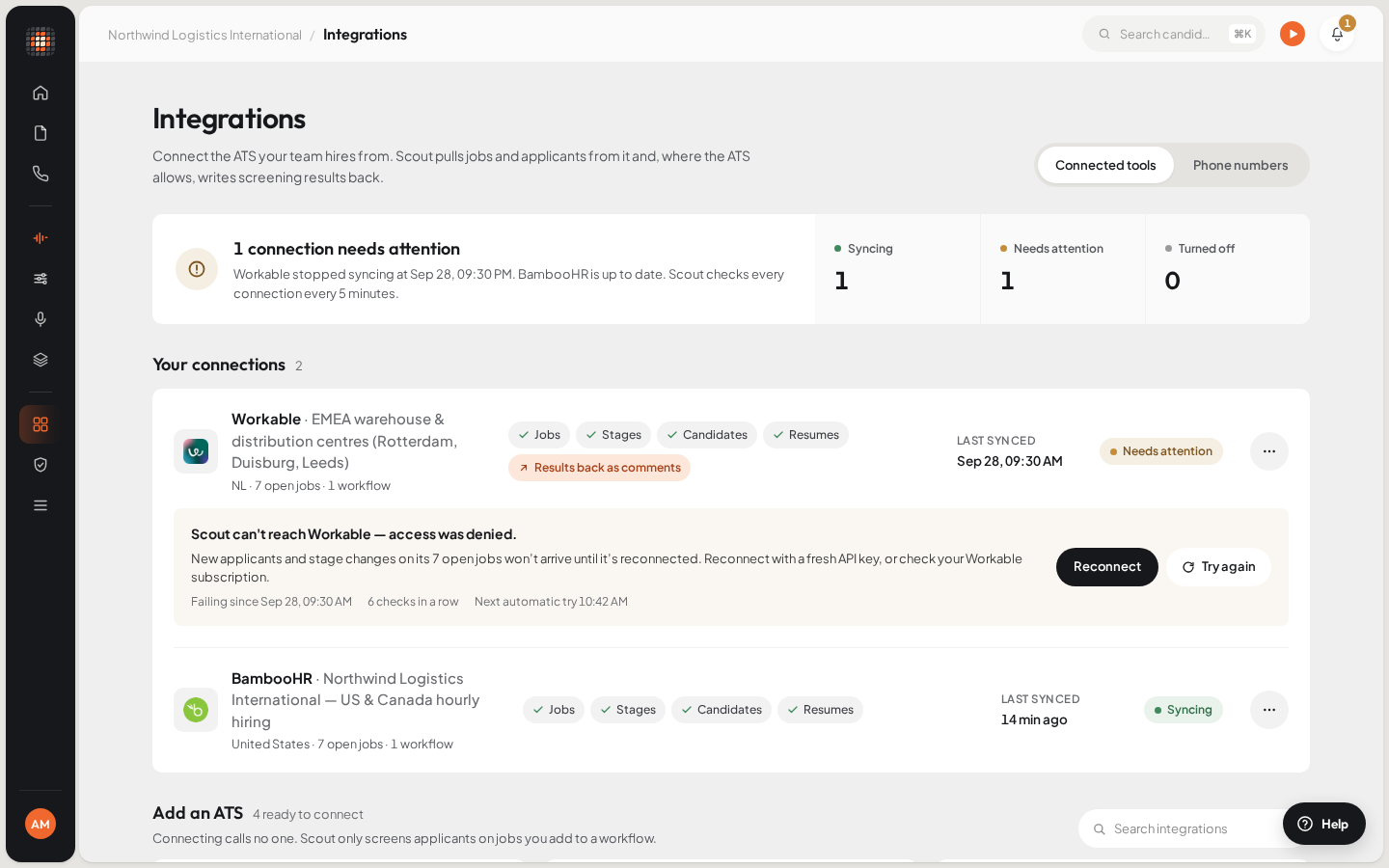
- 01Connection health at a glance
- 02When Scout last synced this ATS
- 03Reconnect a connection that needs attention
- 04More: check, update credentials, write back, disconnect
| Status | What it means |
|---|---|
| Syncing | Scout is pulling from the ATS as normal. |
| Needs attention | Scout stopped syncing because the ATS refused its credentials, or couldn’t be reached for over an hour. No new applicants or stage changes arrive. Admins see Reconnect and Try again on the connection. |
| Turned off | An admin turned syncing off. Scout keeps everything it has synced, but picks up nothing new until syncing is turned back on. |
For fixes, see ATS connection problems.
Manage a connection#
Each connection under Your connections has a ⋯ menu. Only admins see it.
| Menu item | What it does |
|---|---|
| Check connection now | Tests the connection with the credentials Scout already has. You can check each connection once every 30 seconds; the button counts down until you can try again. Turn syncing back on before checking a connection that’s turned off. |
| Update credentials | Opens the connect form in reconnect mode. The label, region and everything synced stay; only the credentials change. The new credentials must be for the same ATS account, because every job and candidate is tied to it. |
| Turn off syncing / Turn on syncing | Pauses or resumes syncing. Nothing is deleted while syncing is off. |
| ATS write back | Chooses what Scout sends back to the ATS. See Write results back to your ATS. |
| Disconnect… | Removes the connection and what it synced. See below. |
Disconnect an ATS#
In the connection’s ⋯ menu, click Disconnect….
ResultScout first checks what disconnecting would remove.
Read what will go. If any of its jobs are still open, they’re listed, with how many scheduled calls will be cancelled.
Choose one:
- Keep it closes the dialog and changes nothing.
- Disable instead turns syncing off and keeps everything. It’s offered when the connection still has open jobs.
- Disconnect anyway (or Disconnect, when no jobs are open) deletes the connection and what it synced.
To use the ATS again later, connect it from scratch with fresh credentials. Everything re-syncs from the start.
Request an integration#
Use an ATS Scout doesn’t connect to yet? Tell the Scout team. New integrations are prioritised by how often they’re requested.
On the Integrations page, click Request an integration.
Choose your ATS in the ATS list. If it isn’t listed, choose Other and type its name in ATS name.
Under What do you need from this integration?, say what you’d like Scout to read from it or write back, in up to 100 words.
Click Send request.
ResultRequest sent. The dialog shows the email address the Scout team will reply to.
Open in Scout: Open Integrations