Assign a workflow to jobs
A job is screened only once it has a workflow. Assigning one starts syncing an ATS job’s applicants and arms the workflow’s stages for the job. Members and admins can both assign.
Before you start
- An active workflow for the job’s source. See Create and activate a workflow.
- For an ATS job, a workflow made from that same ATS connection. For a manual job, one with the source Manual jobs (no ATS).
Assign a workflow to one job#
Open Jobs and select the job.
Open the Job details tab and click Assign a workflow (or Change workflow if it has one).
Pick a workflow in Screening workflow. Only active workflows from the job’s own source are listed.
ResultUnder What this changes, Scout lists each stage, its agent and what happens on this job, including any stage that already routes to a different agent and will be repointed.
Click Assign.
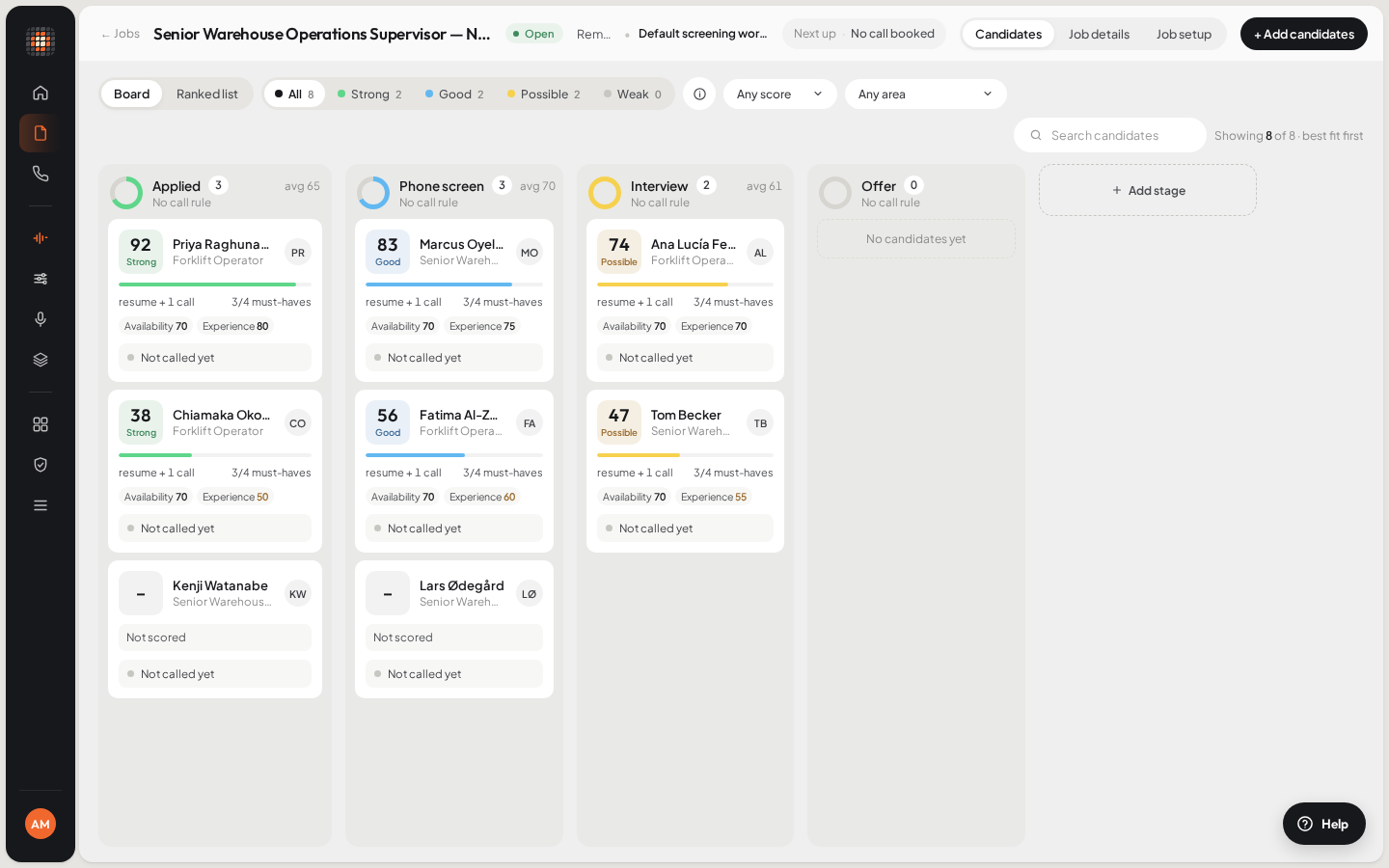
ResultThe job shows the workflow’s stages and agents. An ATS job starts syncing its applicants.
To stop screening a job, open the same dialog, choose Not screening yet and click Unassign. Candidates already synced stay on the job.
Assign a workflow to many jobs#
In Jobs, tick the jobs you want. They must all come from the same source: one ATS connection, or all manual.
Click Assign workflow in the bar that appears.
Pick a workflow in Screening workflow and read the notices.
- Jobs that already have a workflow will have it replaced.
- Jobs where the workflow replaces an existing stage rule are counted, because a different agent will call the next candidate at that stage.
- Jobs with no job description are flagged: the agent has nothing to screen against.
Click the assign button to confirm.
ResultScout assigns the jobs one by one. If any fail, they are named with the reason and stay ticked.
What assigning does, and doesn’t do#
- Only candidates who move into a mapped stage after you assign are called. People already sitting in that stage are not.
- On an ATS job, applicants already in the pipeline when Scout first syncs the job aren’t called either.
- You can assign a workflow to a closed job. Nothing happens until the job reopens.
- Changing a workflow later changes it on every job assigned to it.
No workflow to pick?#
If the dialog says there is no active workflow for the job, create or activate one in Workflows in the sidebar. (The dialog’s message points to Settings, but workflows live in the sidebar.)
- Your workflow is still a draft: an admin has to open it and click Activate. Assigning a draft shows Workflow Not Active.
- Your workflow comes from a different source than the job. Scout shows Workflow Does Not Match This Job: stage names only match within one ATS connection, so create a workflow from the job’s own source.
- For an ATS job, Sync now under the workflow syncs its candidates on demand. It needs both an assigned workflow and the ATS connection; without them Scout shows Job Not Assigned.