Compare candidates for a job
A job’s Candidates tab shows everyone who applied, best fit first, so you can see at a glance who to look at. Open any candidate to see why they scored as they did, then decide what happens next.
Before you start
- A job with candidates. Scores appear once their calls have been analysed.
Open the job’s candidates#
Open Jobs in the sidebar and select the job.
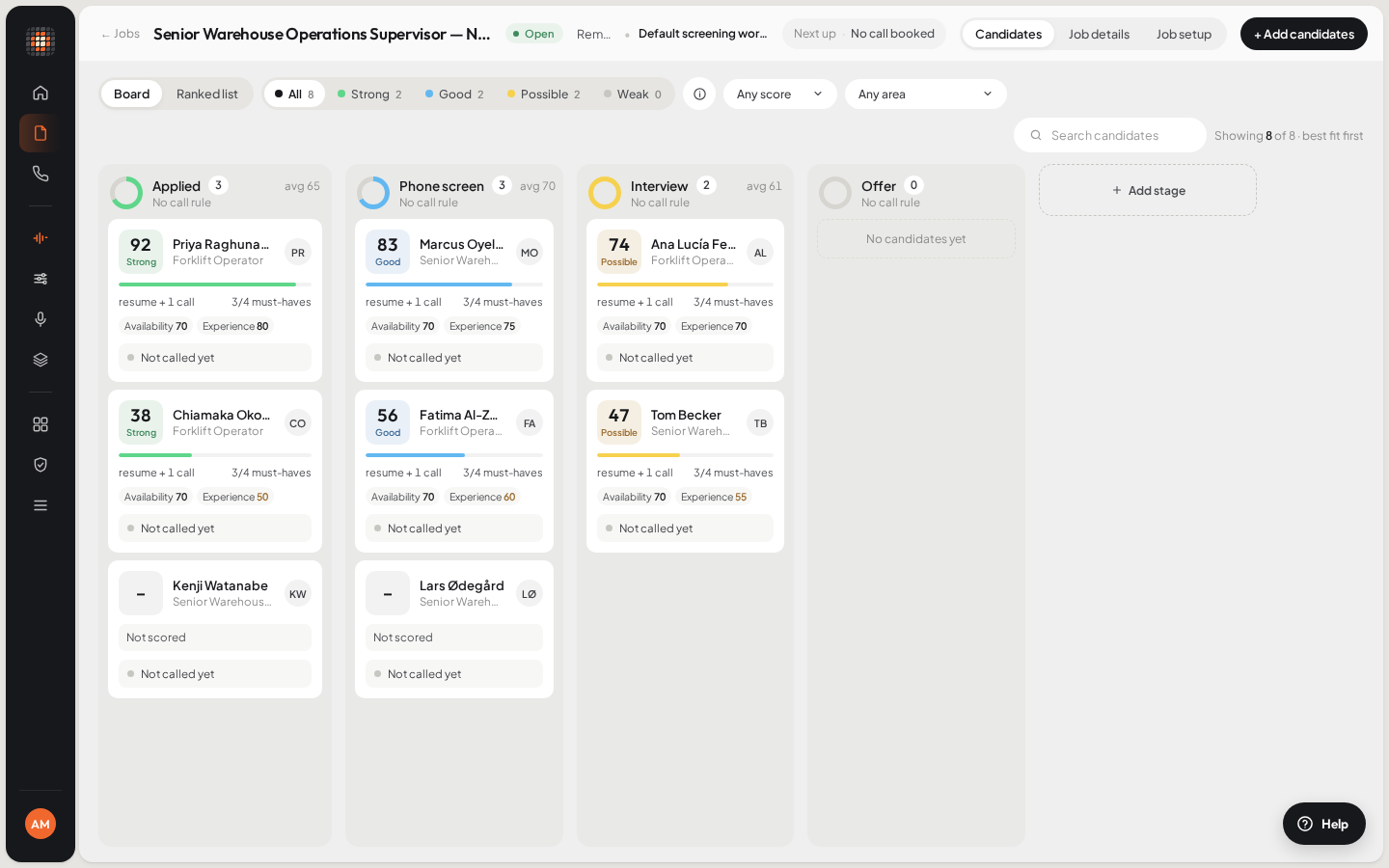
ResultThe job opens on its Candidates tab.
Choose Board or Ranked list at the top left.
- Board: one column per pipeline stage, best fit first in each. A column header shows how many are in it, their average score, the mix of bands, and whether an agent calls whoever lands there.
- Ranked list: everyone in one list with Stage, Suitability, Must-haves and Next step.
A yellow dot on a candidate’s avatar means they need you: missed calls, asked not to be called, left a message, were flagged on a call, fall short of a requirement, or are a good fit waiting for a call.
Narrow the list#
- Fit bands: All, Strong, Good, Possible or Weak, each with a count.
- Minimum score: Any score, 50 and above, 70 and above or 85 and above.
- Area: Any area, an area at 70 or more (for example “Technical 70+”), or Meets all requirements.
- Search: type a name in Search candidates.
Clear filters resets them. The count beside the search says how many of the job’s candidates are showing.
Score a job Scout doesn’t screen#
On a job with no workflow, Score candidates asks Scout to read every applicant against the job. Candidates without a call get a resume check; the score itself comes from calls. Jobs that Scout screens score their candidates on their own. See How scores and fit bands work.
Open a candidate#
Click a card to open the candidate’s panel beside the board. The header shows their score and band, the summary, and the actions. Use ↑ and ↓ to move to the previous or next candidate, and Esc to close.
| Tab | What it shows |
|---|---|
| Decision | What counted In their favour and Against, the answers that need a look, How the score is made for this job, follow-ups, calls at a glance and recent events. A booked interview or video interview shows here too. |
| Detailed analysis | Each call’s full analysis. |
| Timeline | Everything that has happened to them on this job. |
| Calls | Their calls (Calls & interviews once they have a video interview). |
| References | The references they named and what each said when Scout called them. |
| Notes for the agent | Notes every call to them about this job uses, such as a joining date. They change what the agent says, never who is called or when. |
| Resume | Their resume. |
Header actions: Call now (see Call now and follow-up calls), Send interview link when you have a live video interview agent (see Send an AI video interview), and Re-score.
Move a candidate on#
Manual jobs: drag a card to another column, or click the Move to button in the panel, which names the next stage. If that stage has an agent in the job’s workflow, Scout calls them there. Add stage adds a column. See Pipeline stages.
ATS jobs: the stages are your ATS’s. Make the change in your ATS and Scout follows it on its next sync. See Connect your ATS.